
Free Batch Subtitle Editor
Edit subtitle text, start and end times in your browser. Split or merge cues, shift a whole file, and see the reading speed of each line as you type.
- Free
- Online, no installation
- Batch SRT & VTT
- No sign-up
- Files stay on your device
No file ready?
Fixing subtitles that show up late
In this sample every subtitle appears 0.3 seconds after the speech. One shift moves all three cues earlier, and the reading speed next to each cue shows they are still easy to read.
creator-video.srt Before
100:00:00,500 --> 00:00:03,200Today we are making a subtitle workflow.200:00:03,800 --> 00:00:06,300Edit the words and the time together.300:00:07,000 --> 00:00:09,500Then download the reviewed file.
creator-video.srt After shifting -300 ms
100:00:00,200 --> 00:00:02,900Today we are making a subtitle workflow.200:00:03,500 --> 00:00:06,000Edit the words and the time together.300:00:06,700 --> 00:00:09,200Then download the reviewed file.
- 12.6 CPSDurations are unchangedCue 1 has 34 characters over 2.7s, below the 20 CPS target. Cues 2 and 3 read at 12.4 and 11.2 CPS.
- ExtendChange the end timeWhen there is space before the next cue.
- SplitSplit the cueDivides the text and the time in two.
- ShortenEdit the wordingWhen the next cue starts too soon.
- ShiftMove the whole fileWhen every cue is early or late by the same amount.
How to edit an SRT or VTT file
Open one file or a batch
Drop SRT or VTT files and choose the file to edit from the toolbar.
Edit text and times
Type in the start time, end time and text fields of any cue. Use find and replace, split, merge or shift for bigger changes.
Download the edited files
Download the active file or the batch. Your edits are also saved as a draft in this browser until you clear them.
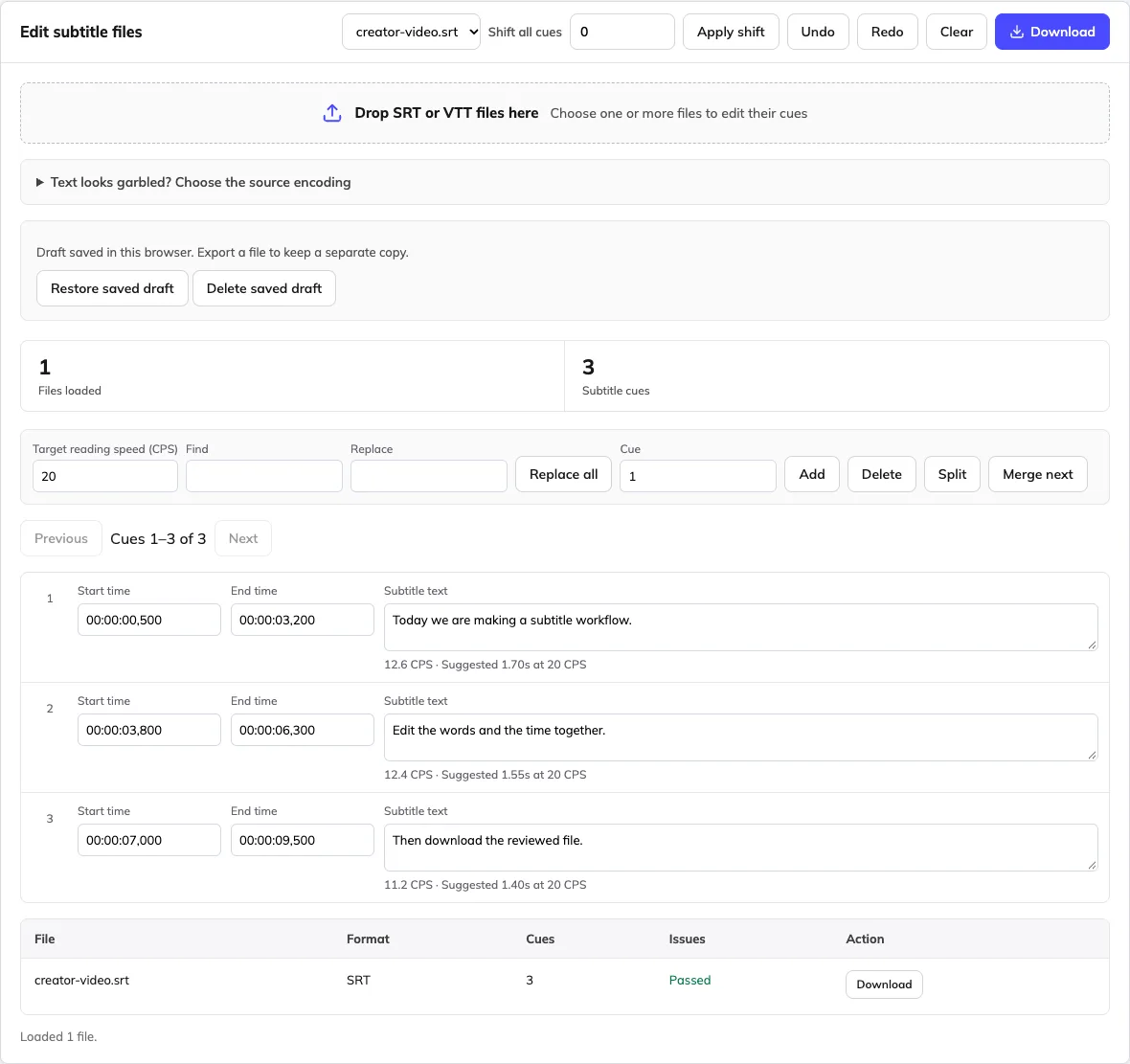
What you can change
Each action applies to the active file unless the table says otherwise. Undo and Redo work for every action.
| Action | What it does | Applies to | Good for |
|---|---|---|---|
| Edit text | Change wording and line breaks in the text field | One cue | Typos, names, line length |
| Edit start and end time | Type a new time in HH:MM:SS,mmm format | One cue | Fast cues, late or early lines |
| Split | Divides the text in half and the time at its midpoint | Selected cue | Long cues with two sentences |
| Merge next | Joins a cue with the one after it | Selected cue and the next | Fragments of one sentence |
| Add and delete | Inserts a 2-second cue after the selected one, or removes it | Selected cue | Missing or extra lines |
| Find and replace | Replaces every match of a word or phrase | Active file | Renamed characters or products |
| Shift all cues | Moves every cue earlier or later by the milliseconds you enter | All loaded files | A track that is out of sync by a fixed amount |
Input: One or more editable SRT or VTT files.
Output: Edited UTF-8 subtitles with text and timing changes; a local browser draft when storage is available.
Limits: Draft storage is local to this browser and can be cleared or unavailable. Downloaded files are the durable copy; the editor does not alter video pixels.
Drafts are kept in this browser's storage when it is available. Download a file before switching devices or clearing browser data, because the draft cannot be recovered elsewhere.
Frequently asked questions
Is the online subtitle editor free, with no account required?
Yes. Opening, editing and downloading SRT or VTT files is free without an account. The editor does not add a watermark to subtitle text. It edits separate subtitle files; it is not a free video-rendering or AI translation service.
How do I edit subtitle text and start or end times?
Open a subtitle file and edit its text, start time or end time in the cue list. Enter times as HH:MM:SS,mmm, such as 00:01:18,880. Invalid input is flagged and the previous valid time is retained. Download a copy and test it against the video.
Can I edit several subtitle files in one session?
Yes. Load multiple files and choose the active file from the selector. Text changes and Replace all apply to the active file; Apply shift moves cues across the loaded files. Review the scope before using a batch action, and export the set when you are ready.
Which subtitle formats and languages can I edit?
The editor opens SRT and VTT files. The file tools work with subtitle text rather than a fixed list of translation languages. They can retain Unicode text such as English, Spanish, Portuguese, Chinese, Japanese, Hindi and Arabic when decoded correctly. For garbled text, choose the original encoding and inspect the preview. Exports use UTF-8; review right-to-left display in your destination player.
How do I fix subtitles that appear too early or too late?
Enter a positive or negative offset in milliseconds and apply the shift. A constant offset is appropriate when the whole file is early or late. If the offset grows during the video, inspect individual cues and the source cut; a single shift will not repair progressive drift.
Can I add, delete, split or merge subtitle cues?
Yes. Use the cue controls for the active file, then review text, timing and the following cue. Undo and Redo help reverse edits within the current workspace. Splitting or merging cues does not automatically approve their timing against the spoken performance.
What do CPS and the suggested duration mean?
CPS estimates reading speed from the cue text and its duration. The suggested duration uses your selected CPS target. It is a review aid, not an automatic rewrite or language-specific quality guarantee. If the next cue leaves insufficient room, shorten or split the text and check the video.
How do I save and download the edited subtitles?
Use Download for the edited file or the batch ZIP. Exported subtitles use UTF-8. Your original local files are not overwritten. Large files are paginated in the editor; changing the visible page does not mean the other cues are excluded from the download.
Can I recover a draft after refreshing or closing the page?
When browser storage is available, the editor saves a local draft and offers Restore or Delete on return. It also warns before leaving with unsaved work. Drafts are limited to this browser and device, and may disappear when storage is cleared or unavailable. A downloaded file is the durable copy.
Does it work on Mac or Windows, and are my files private?
Use a current desktop browser on macOS or Windows; no app installation is required. A desktop screen is more comfortable for comparing cues and reviewing batches. Keep a downloaded copy of your work, especially before closing a private-browsing session. Subtitle file processing happens in your browser, without sending the selected files to a Weydub processing endpoint. This does not describe the separate video translation or dubbing services, which process uploaded media. Keep original files and download the result you want to retain.
Can I edit burned-in subtitles, generate captions or preview an audio waveform here?
No. This lightweight editor works with existing SRT and VTT text and times. It does not change burned-in video pixels, transcribe speech, provide a video waveform or generate a dubbed track. Use the separate video workflows for those tasks.