
Free Batch Subtitle Merger
Join episode or part subtitles into one SRT or VTT file. Each later file is shifted by the full length of the videos before it, so the merged subtitles stay in sync.
- Free
- Online, no installation
- Batch SRT & VTT
- No sign-up
- Files stay on your device
No file ready?
How two episodes become one subtitle file
Both sample files start at 00:00. Each episode video is 10 seconds long, so every cue in episode 02 moves 10 seconds later.
Input files Each starts at 00:00
episode-01.srt100:00:00,800 --> 00:00:03,200Welcome to episode one.…300:00:07,200 --> 00:00:09,800Keep the timing with the picture.
episode-02.srt100:00:00,600 --> 00:00:03,000The next episode continues.…300:00:06,800 --> 00:00:09,200Export one clean subtitle file.
merged-subtitles.srt Output, 6 cues
100:00:00,800 --> 00:00:03,200Welcome to episode one.…300:00:07,200 --> 00:00:09,800Keep the timing with the picture.400:00:10,600 --> 00:00:13,000The next episode continues.…600:00:16,800 --> 00:00:19,200Export one clean subtitle file.
Episode 02 is shifted by 10 seconds, the full length of episode 01, and its cues are renumbered 4 to 6. The last subtitle of episode 01 ends at 9.8s, so using it as the offset would put episode 02 0.2s early.
How to merge subtitle files
Add files in episode order
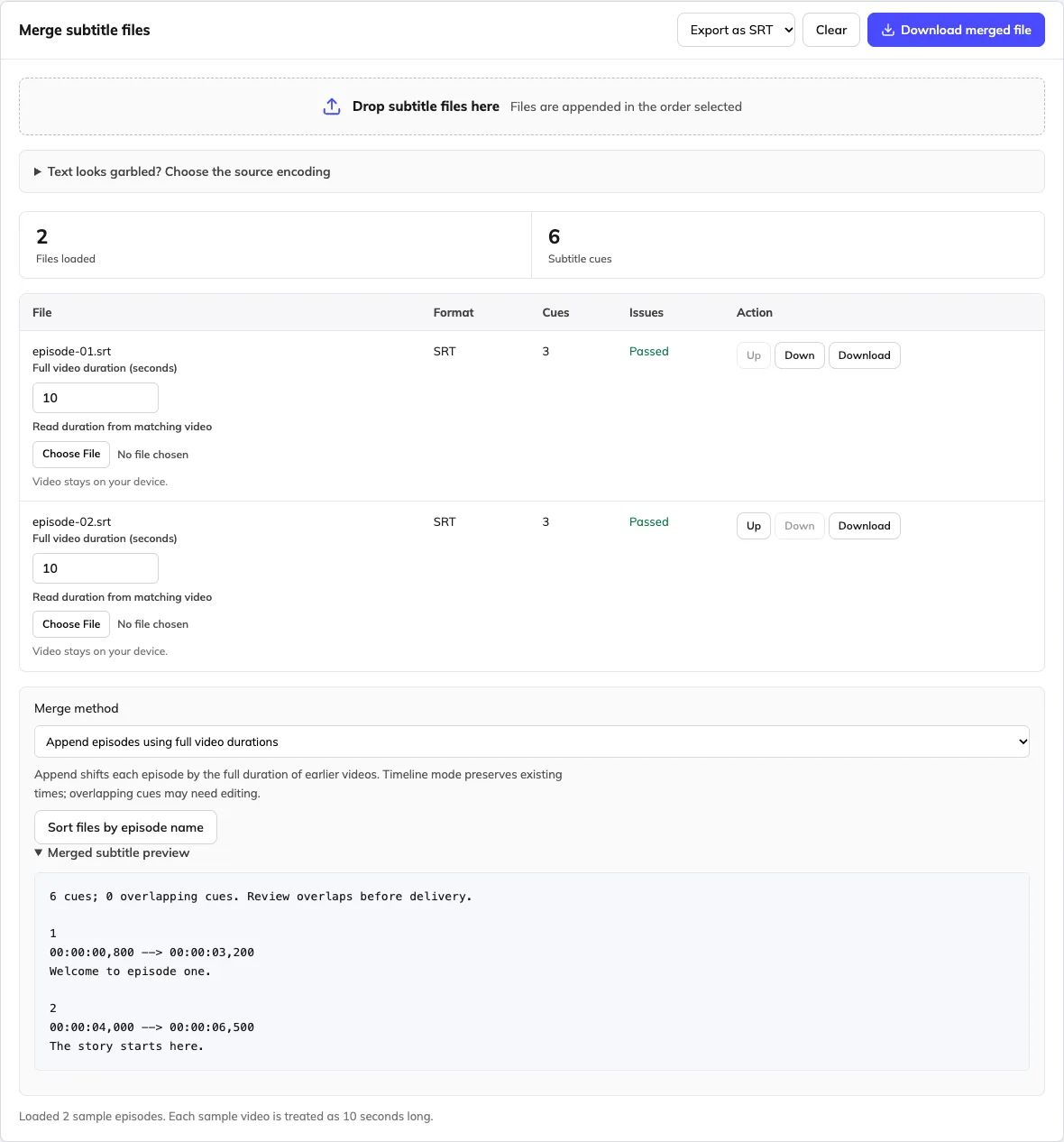
Drop the subtitle files, then use Up and Down or sort by episode name. Check the order before going on.
Enter each full video duration
Type the length in seconds, or pick the matching video so the browser reads it. The video is not uploaded.
Review and download
Choose SRT or VTT, read the merged preview and check any overlaps, then download one file.
Choose the right merge method
Most series need the first method. The second is only for files that already share one timeline.
| Method | Use it when | What happens to the times | Watch out for |
|---|---|---|---|
| Append episodes | Each file starts at 00:00, for example episodes or parts of a series | Each file is shifted by the total length of all earlier videos | Durations must include silent endings and credits |
| One shared timeline | Files already refer to the same video, for example dialogue and on-screen text tracks | Times are kept and cues are sorted by start time | Overlapping cues stay overlapped; fix them in the editor |
Input: Episode subtitle files with full video durations, or subtitle files already on one shared timeline.
Output: One renumbered SRT or VTT with a text preview.
Limits: Episode append needs complete video durations, including silent endings. Timeline mode preserves overlapping cues and does not create bilingual media tracks.
The merger creates one subtitle file. It does not join the videos, create selectable language tracks or align two translations line by line.
Frequently asked questions
Is the online subtitle merger free and available without login?
Yes. You can combine SRT and VTT files and download the result for free without creating an account. The subtitle files and optional videos used to read duration are handled locally in your browser.
How do I merge several episode subtitle files into one SRT?
Choose the episode files, confirm their order and use the append method. Supply each full video duration manually or read it from the matching local video. Review the merged preview, choose SRT or VTT and download the combined file.
Why do I need the video duration instead of the last subtitle time?
An episode may continue after its final spoken line. Appending from the last subtitle would remove that silent ending from the offset and make later episodes appear early. Enter the complete runtime, including silent sections, or read the duration from the corresponding video.
What is the difference between episode append and shared-timeline merge?
Append shifts later episodes by the cumulative full duration of the earlier videos. Shared-timeline mode keeps existing cue times and sorts them by start time. Use it only when the files already refer to one common timeline; it does not create aligned bilingual cue pairs.
Can I reorder a batch or merge a long series?
Yes. Use the Up and Down controls or sort naturally by episode name, then check the actual order. There is no fixed 100-episode promise: practical size depends on browser memory and the number of cues. The preview can be shortened for large outputs while the download retains the complete generated text.
Can I merge subtitles in different languages or make bilingual subtitles?
The tool can retain correctly decoded text from different languages, but it does not translate or align matching translations. Shared-timeline output may contain overlapping cues. It is not a bilingual alignment editor or a video container with selectable audio or subtitle tracks.
Which formats can I import and download?
Import SRT or VTT subtitle files and export one combined SRT or VTT file. Cues are renumbered in the generated output. Keep original files, especially if they contain styling or WebVTT features that a basic combined output may not preserve.
Does the merger repair overlaps or synchronization automatically?
The preview identifies overlapping cues, but the merger does not decide which dialogue should be deleted or retimed. Confirm the merge mode and durations first. Correct individual timing problems in the editor and inspect the result against the combined video.
Can I merge subtitles on Mac and Windows?
Use a current desktop browser on macOS or Windows; no app installation is required. A desktop screen is more comfortable for comparing cues and reviewing batches. Keep a downloaded copy of your work, especially before closing a private-browsing session.
Do I have to upload the matching videos to a server?
No. Selecting a matching video lets the browser read its duration on your device. The video is not uploaded by this tool. You can instead type the full duration manually; the tool merges subtitle files, not the video or audio itself.
Why is the next episode out of sync after merging?
Check episode order, full runtimes and whether each source subtitle starts relative to its own episode. An extra introduction, missing end section or a different video cut changes the required offset. A consistent offset can be shifted; progressive drift needs closer timing review.