
How to Automatically Remove Hardcoded Text from Your Triller Videos?
Effortlessly eliminate hardcoded subtitles and text from Triller videos with Weydub using these 3 steps


-
01Upload/PasteUpload files (batch supported) or paste Triller video URLs.
-
02SettingsSelect removal quality level. Optional: Add translation, etc.
-
03DownloadReview the cleaned video for leftover text and changes to the background, then download the result.
Hardcoded Subtitles in Triller Videos Limit Global Reach.
When Triller users create music videos using AI, if the original footage contains hardcoded subtitles (embedded internally, unchangeable), the fixed subtitles interfere with the AI's scene analysis and effect generation, impacting the final production's professionalism and visual fluidity.
Removing Hardcoded Texts from Triller Videos is Difficult, but We Did It.
When creating rhythmic music short videos on Triller, fixed hardcoded subtitles interfere with visual flow and focus. The technical bottleneck for removal lies in pixel recognition and seamless background reconstruction. Our AI tool seamlessly removes hardcoded subtitles, making your Triller productions appear more professional and visually dynamic.
Why Use Weydub for Erasing Triller Video Subtitles & Text?
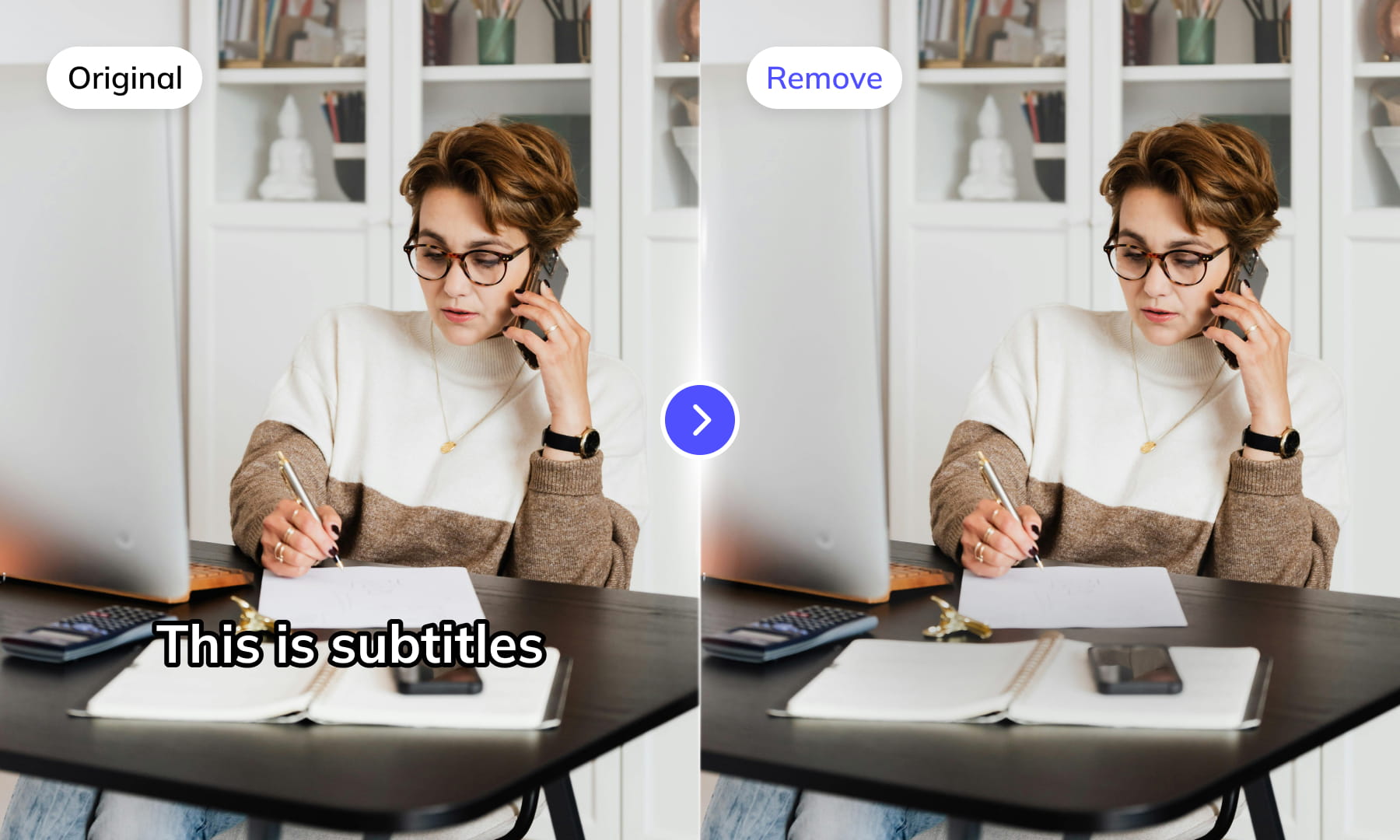
Use Weydub to remove selected subtitles and on-screen text from video. Review the repaired background and retained graphics before downloading the result for editing or localization.
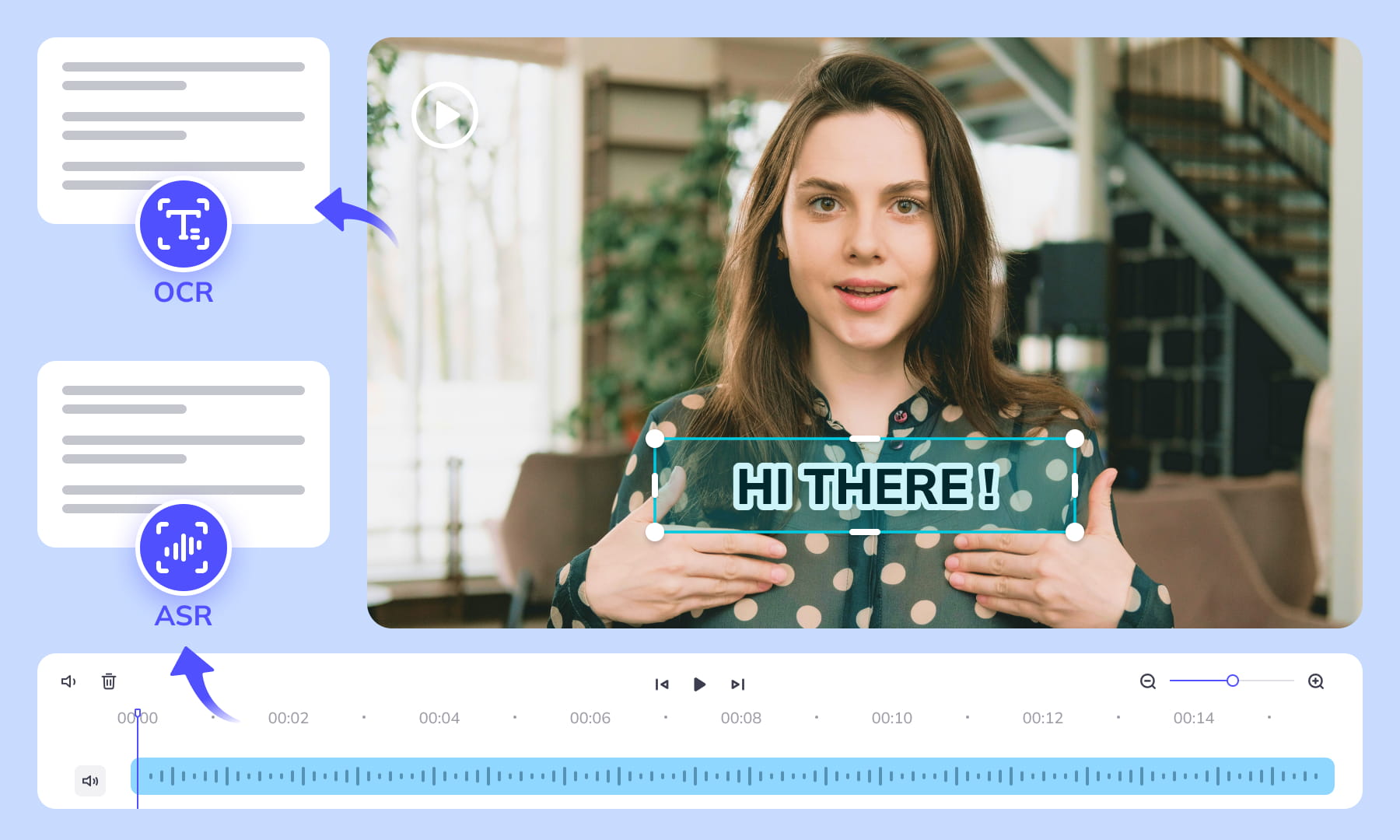
AI-Assisted Text Selection
Use AI-assisted text detection to prepare the cleanup. Review the selected regions and keep any text or graphics that should remain. Inspect the repaired video before moving it into the next workflow.
Background Repair and Review
AI repairs the area behind removed text. Results depend on the background, motion, and text placement. Compare repaired frames with the source, especially around faces, fine textures, and scene changes.
High-Volume Batch Capabilities & API Integration
Organize subtitle and text removal across multiple video files with batch workflows. Use the API for automated submissions, and check the settings and results for each source video.
Intelligent Multi-Language Support
Our system automatically identifies and removes text or subtitles in many languages. This is essential for repurposing content internationally and ensuring your AI video tools cater to a global audience, especially when working across multiple platforms.
Review Pricing Before Submission
Check the current Pricing page and the estimate shown for your task. Choose the processing options that fit the footage, and review the displayed cost before confirming.
Browser-Based Convenience
No downloads or installations necessary! Conveniently remove text from your Triller videos online through our intuitive subtitle removal interface. Compatible across platforms (Windows, Mac) and mobile devices (iPhone, Android).
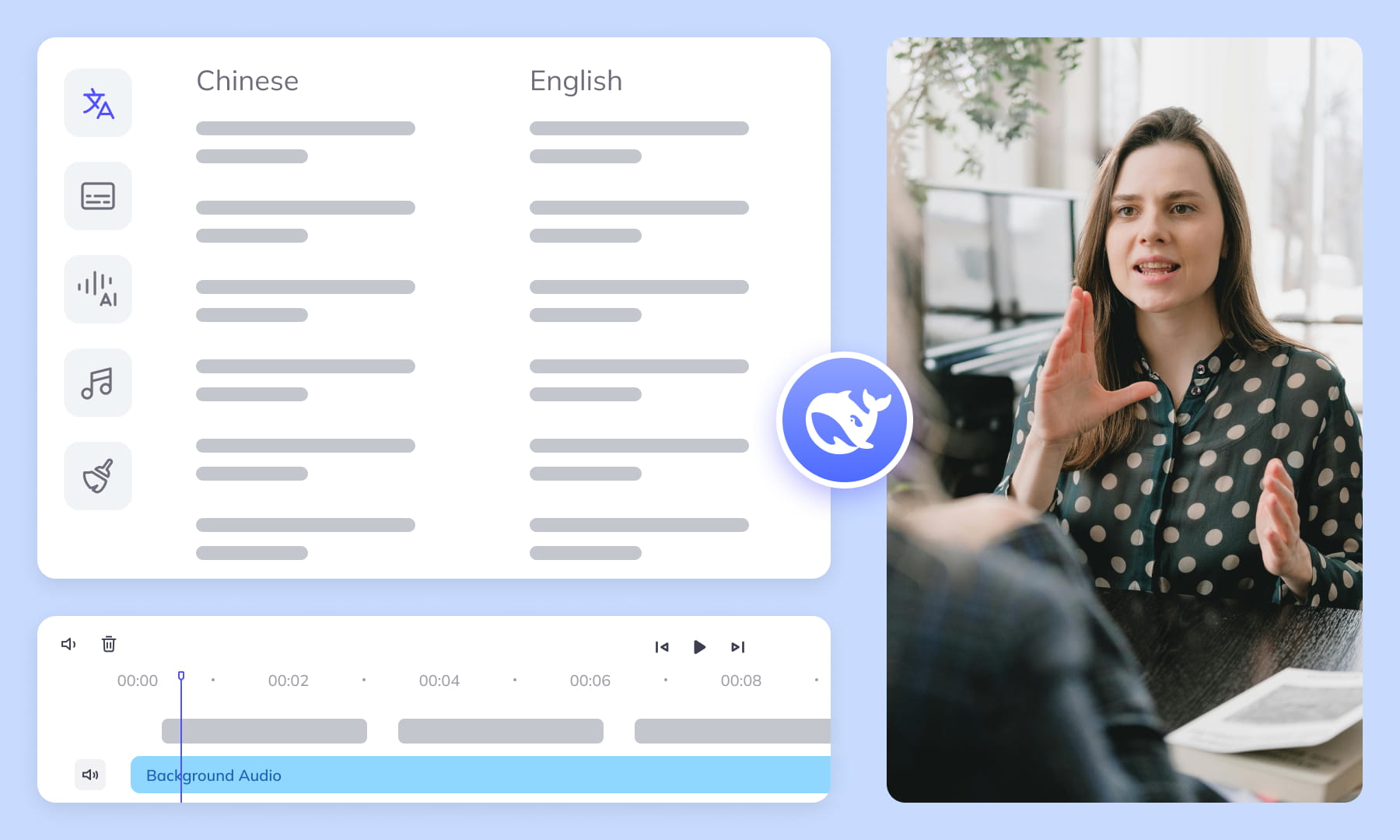
One-Stop AI Localization Workflow Effortlessly Globalize Your Videos
Weydub offers a revolutionary, all-in-one platform where every step, from subtitle generation to final rendering, seamlessly integrates.

Project Management
Organize projects and source assets for batch workflows. Review task settings and outputs for each video before delivery.

Export & Download
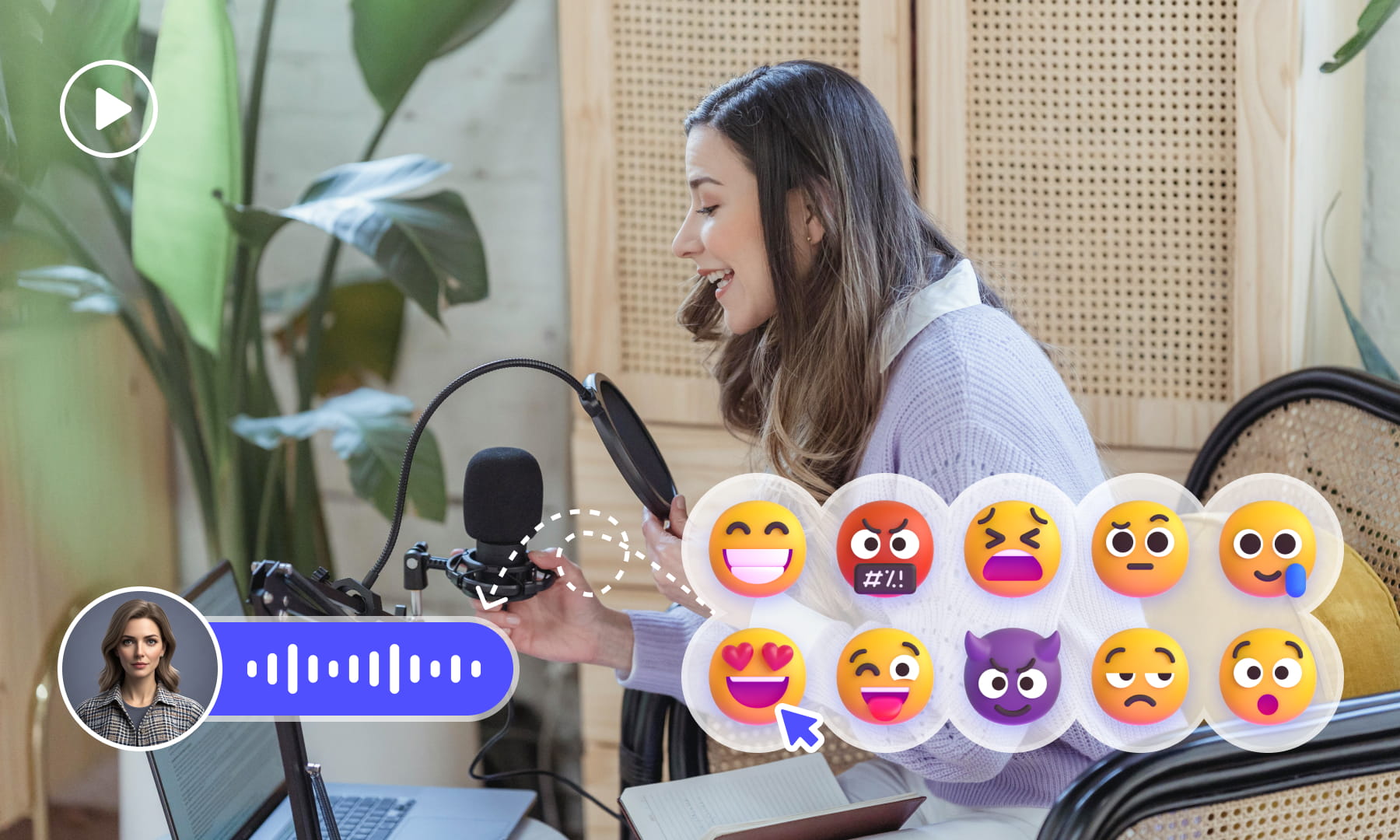
Review subtitle timing and any dubbed audio before delivery. Check the video and project export options available for the selected workflow.
Remove More Text from triller Videos for Easier Reuse


Frequently Asked Questions
Where can I check pricing and available trial credits?
Check the current Pricing page and your account balance before submitting a task. Available trial credits, paid options, and the cost shown for your selected workflow should guide your decision. Review the task settings and displayed estimate before confirming; this guide does not promise a fixed free allowance or a specific price.How best to remove subtitles/text from Triller videos?
Upload the Triller video, identify the text regions that should be removed, and submit the removal task. Separate hardcoded subtitles from selectable subtitle tracks, which may be removable outside the picture. For rhythm-led cuts, preview repaired frames around transitions and repeated caption positions, then download the reviewed output.How does Weydub's AI remove subtitles from Triller videos?
Weydub processes visible lettering within the video picture and repairs the areas left behind. In Triller clips, check captions over moving performers, flashing backgrounds, and rapid cuts because those scenes can make reconstruction more noticeable. Review frames before and after each cut, especially where outlined text overlaps clothing or faces.Will subtitle removal affect video quality or cause blur?
Results depend on the text size, movement, and background complexity. A static subtitle over a plain area is different from lettering crossing a dancer, instrument, or animated effect. Inspect repaired backgrounds at normal speed and frame by frame, looking for blur, repeated textures, edge smearing, or flicker before downloading the output.Do I need professional video editing experience?
Start by choosing footage and identifying the text you want to remove. You do not need a full editing project, but you should compare the repaired frames with the original video before publishing. Moving backgrounds, overlapping graphics, and text near faces may require closer review and adjustments to the selected region.Is manual selection needed for text removal from Triller videos?
Check the current workflow choices after uploading, then confirm that the intended text regions are covered. Manual adjustment is useful when captions move, appear in several positions, or sit close to performers. Avoid selecting faces, hands, or decorative graphics, and sample frames throughout the clip rather than checking only its opening scene.What types of text or elements can Weydub remove?
Use the removal workflow for visible elements such as hardcoded subtitles, title cards, scrolling text, logos, or watermarks when they are part of the picture. Treat each text layer separately if elements overlap. In Triller edits, also inspect repeated lyric lines and creator commentary that reappear after rhythm-led cuts.What other languages/platforms are supported for removal?
Pixel removal does not require speech transcription or a recognition-language setting. Confirm the current upload requirements and workflow choices for your file. Review right-to-left lettering, vertical text, accented characters, and outlined scripts by their visible boundaries, while treating an external selectable subtitle track separately from text burned into the video picture.Does Weydub support batch removal of subtitles from Triller videos?
Weydub can support batch workflows. Group clips that use similar caption positions and removal regions, but review each result individually because Triller videos may change performers, backgrounds, or cut patterns. Check opening and closing frames, transitions, and every point where text moves or disappears before downloading the completed outputs.Can I use Weydub on mobile devices for video text removal?
Weydub uses a web workflow, so check the current browser and upload requirements on your device. A desktop browser is preferable when precise region adjustment or batch review is needed, since a larger display makes it easier to inspect repaired edges, moving captions, and text placed close to performers.Can I combine subtitle removal with translation or other tools?
Treat removal and translation as separate review stages. First remove hardcoded picture text and inspect the repaired video. If localization is also needed, create or translate subtitles afterward, verify whether lines represent spoken commentary or clearly audible lyrics, and check wording, timing, line breaks, and placement against the final exported mix.What should I check before uploading private or licensed footage?
Use footage you are entitled to process and check the current privacy policy and service terms before uploading sensitive material. For client projects, confirm that the agreed handling of faces, voices, personal details, and licensed media permits this workflow. Ask support about any specific retention or processing requirement rather than assuming a promise from this guide.
Common Removal Review Scenarios
Review the repaired regions in context before you reuse or localize the video.