
How to Automatically Remove Hardcoded Text from Your Short Drama Videos?
Effortlessly eliminate hardcoded subtitles and text from Short Drama videos with Weydub using these 3 steps


-
01Upload/PasteUpload files (batch supported) or paste Short Drama video URLs.
-
02SettingsSelect removal quality level. Optional: Add translation, etc.
-
03DownloadReview the cleaned video for leftover text and changes to the background, then download the result.
Hardcoded Subtitles in Short Drama Videos Limit Global Reach.
Fast-paced Short Dramas/Web Series, especially those with prevalent hardcoded subtitles (like many originating from Asia), face major restrictions regarding internationalization and multi-platform distribution. Fixed text makes translation and localization extremely difficult and costly, severely blocking content export, global audience acquisition, and associated monetization potential, acting as a key bottleneck to globalization.
Removing Hardcoded Texts from Short Drama Videos is Difficult, but We Did It.
Removing hardcoded dialogue/narration from fast-paced short dramas (esp. vertical format) while preserving quality is challenging. Processing built-in subtitles is key for creators/producers targeting overseas markets. Our AI tackles this pain point, efficiently removing embedded text for rapid translation, localization, global distribution, and monetization cost-effectively.
Why Use Weydub for Erasing Short Drama Video Subtitles & Text?
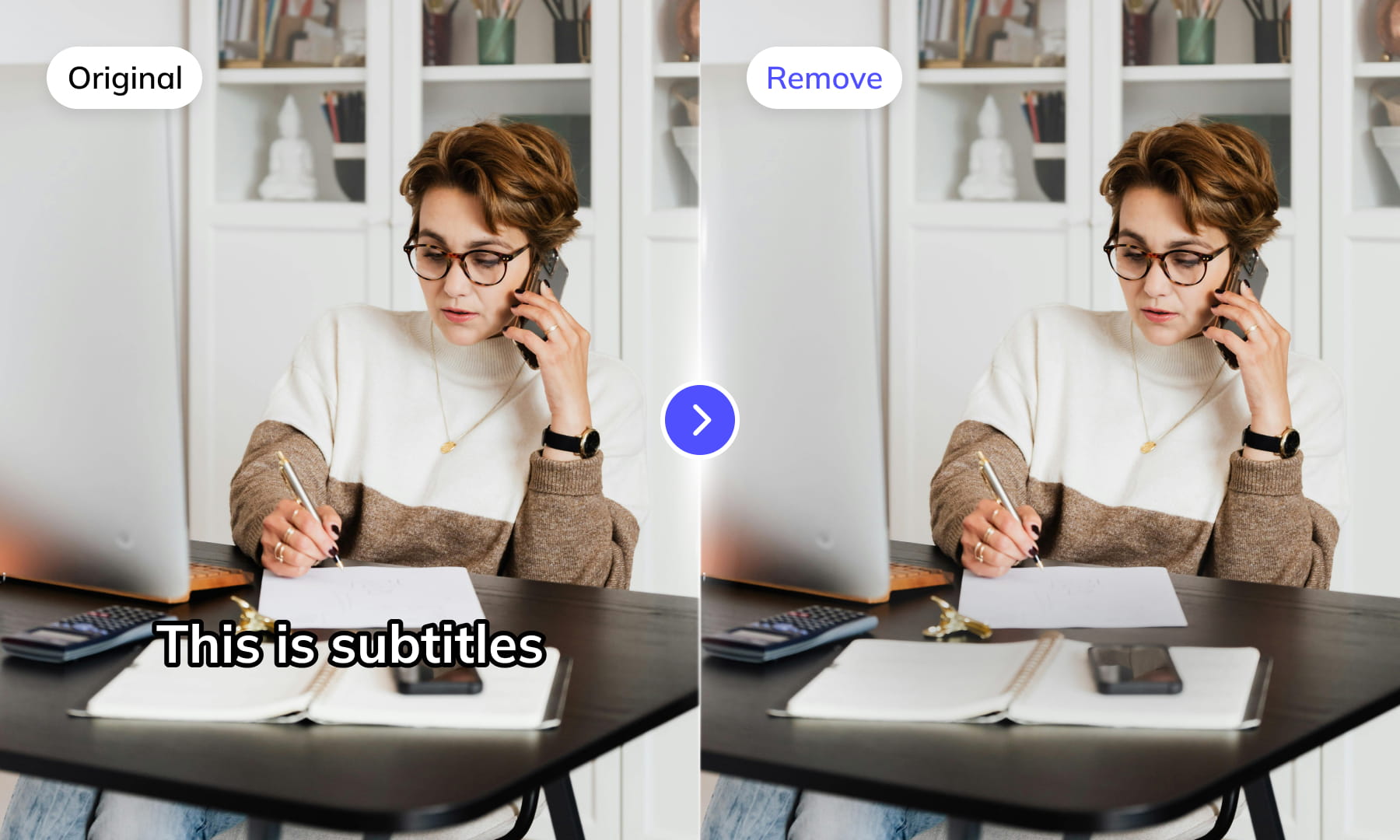
Use Weydub to remove selected subtitles and on-screen text from video. Review the repaired background and retained graphics before downloading the result for editing or localization.
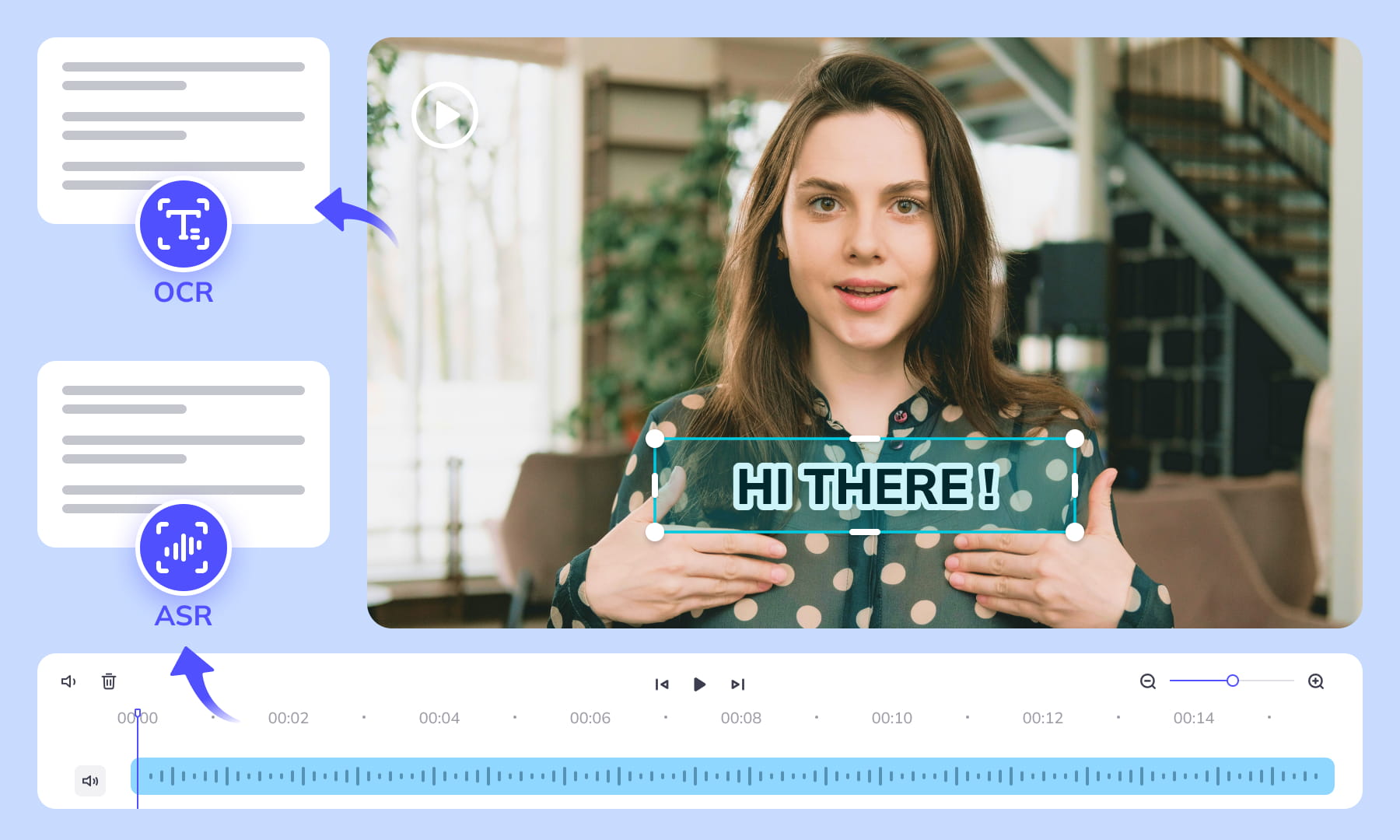
AI-Assisted Text Selection
Use AI-assisted text detection to prepare the cleanup. Review the selected regions and keep any text or graphics that should remain. Inspect the repaired video before moving it into the next workflow.
Background Repair and Review
AI repairs the area behind removed text. Results depend on the background, motion, and text placement. Compare repaired frames with the source, especially around faces, fine textures, and scene changes.
High-Volume Batch Capabilities & API Integration
Organize subtitle and text removal across multiple video files with batch workflows. Use the API for automated submissions, and check the settings and results for each source video.
Intelligent Multi-Language Support
Our system automatically identifies and removes text or subtitles in many languages. This is essential for repurposing content internationally and ensuring your AI video tools cater to a global audience, especially when working across multiple platforms.
Review Pricing Before Submission
Check the current Pricing page and the estimate shown for your task. Choose the processing options that fit the footage, and review the displayed cost before confirming.
Browser-Based Convenience
No downloads or installations necessary! Conveniently remove text from your Short Drama videos online through our intuitive subtitle removal interface. Compatible across platforms (Windows, Mac) and mobile devices (iPhone, Android).
One-Stop AI Localization Workflow Effortlessly Globalize Your Videos
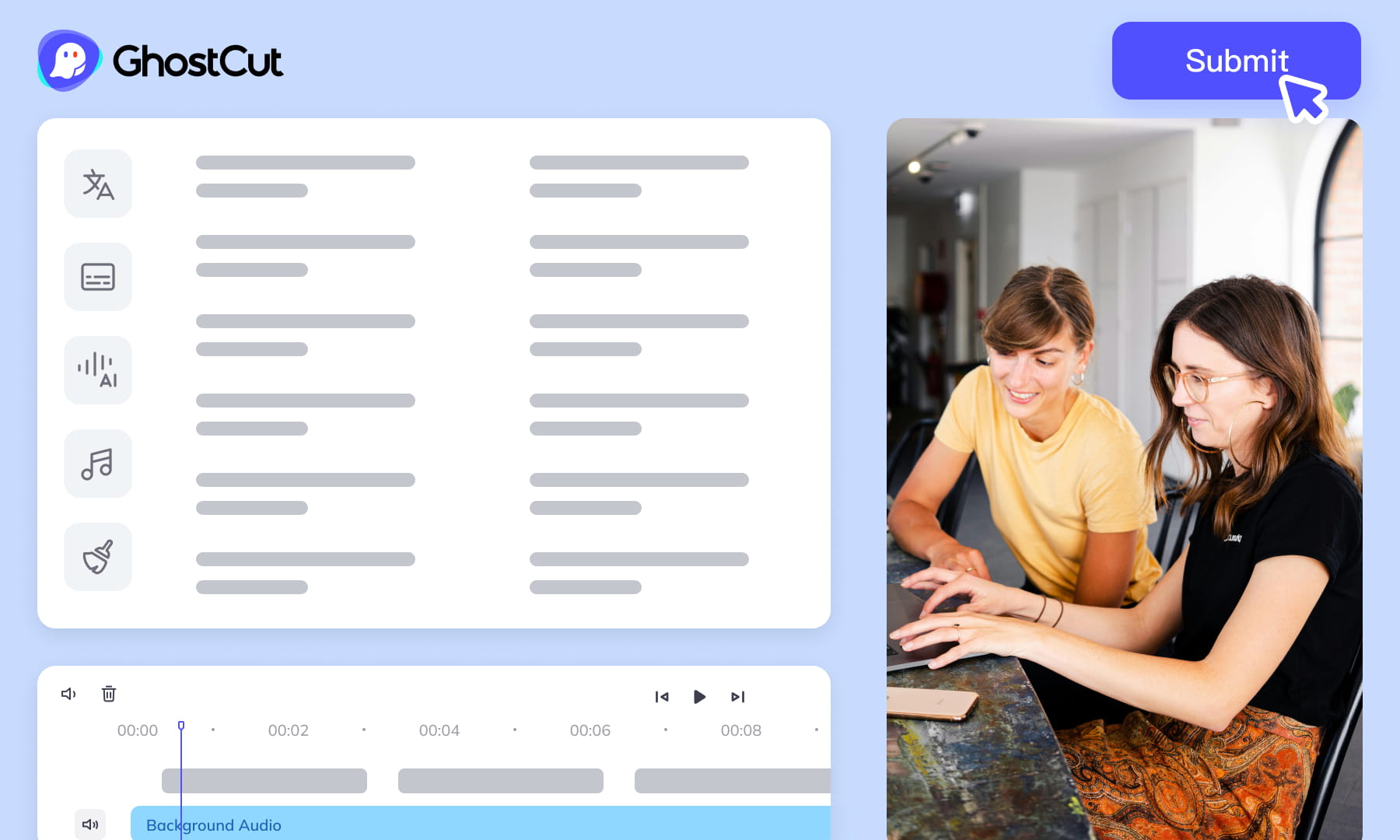
Weydub offers a revolutionary, all-in-one platform where every step, from subtitle generation to final rendering, seamlessly integrates.

Project Management
Organize projects and source assets for batch workflows. Review task settings and outputs for each video before delivery.


Export & Download
Review subtitle timing and any dubbed audio before delivery. Check the video and project export options available for the selected workflow.
Remove More Text from short drama Videos for Easier Reuse


Frequently Asked Questions
Where can I check pricing and available trial credits?
Check the current Pricing page and your account balance before submitting a task. Available trial credits, paid options, and the cost shown for your selected workflow should guide your decision. Review the task settings and displayed estimate before confirming; this guide does not promise a fixed free allowance or a specific price.How should I remove dialogue after reverse-angle cuts?
Treat each reverse angle as its own removal case because the subtitle may cover a face in one shot and scenery in the next. Select the visible text region for both views, then inspect the cut for inconsistent repairs. A clean transition matters when the dialogue continues while the camera changes position.Can opening cast and character cards remain visible?
Yes, keep opening cast or character cards outside the selected removal area when they are intentional graphics. Remove only unwanted hardcoded text, then inspect frames where a card overlaps artwork or a portrait. This preserves useful opening information while limiting background repair to the subtitles or text you actually want removed.Should recap captions be removed with dialogue subtitles?
Decide separately whether episode recap captions belong in the cleaned version. They may be designed story elements, while dialogue subtitles may be unwanted overlays. When both appear in one frame, select only the dialogue text and review the boundary between the retained recap caption and the repaired area for visible gaps or interference.Do I need professional video editing experience?
Start by choosing footage and identifying the text you want to remove. You do not need a full editing project, but you should compare the repaired frames with the original video before publishing. Moving backgrounds, overlapping graphics, and text near faces may require closer review and adjustments to the selected region.What if subtitles cover faces or costume edges?
Inspect subtitles that cross chins, hair, hands, jewelry, or detailed costume edges with extra care. Removal cannot recover the original hidden pixels, so compare repaired frames with nearby shots for unnatural outlines, softened details, or shifting textures. These areas may need closer review than subtitles over plain walls or floors.How do I remove an animated episode title?
Track an animated episode title through its entrance, movement, and exit instead of marking one still position. The text region may expand, rotate, or cross several backgrounds. Review the complete title animation for leftover fragments and unstable repairs, including frames immediately before the title appears and after it disappears.How should scrolling text be handled in a drama shot?
Follow scrolling text across every area it crosses rather than checking only its starting position. It may pass over dialogue subtitles, faces, props, or other moving text layers. Inspect the repaired path throughout the shot for remnants, smeared details, or textures that shift unnaturally as the text moves.What if several text layers overlap in one shot?
Separate dialogue subtitles, location labels, episode markers, and other visible layers by purpose before removal. Select only unwanted layers, then inspect overlaps where a repair could affect retained graphics. Comparing frames before and after each overlay appears helps expose accidental changes without removing text that belongs to the short-drama design.How should I select text regions across changing layouts?
Adjust text regions when subtitles move between centered dialogue, split lines, and positions near different characters. A single fixed lower-screen selection may miss shifted words or include wanted graphics. Check representative scenes across the episode and refine the selection wherever camera cropping, caption placement, or subtitle layout changes.What should I review before downloading the cleaned episode?
Watch the result through scene cuts, moving shots, and title transitions before downloading. Check for remaining text, flickering repairs, softened edges, and changes to faces, costumes, props, or retained cards. Confirm that each intended text layer is gone and every wanted graphic remains in the final output for reuse or delivery.What should I check before uploading private or licensed footage?
Use footage you are entitled to process and check the current privacy policy and service terms before uploading sensitive material. For client projects, confirm that the agreed handling of faces, voices, personal details, and licensed media permits this workflow. Ask support about any specific retention or processing requirement rather than assuming a promise from this guide.
Common Removal Review Scenarios
Review the repaired regions in context before you reuse or localize the video.