
How to Automatically Remove Hardcoded Text from Your Remix Videos?
Effortlessly eliminate hardcoded subtitles and text from Remix videos with Weydub using these 3 steps


-
01Upload/PasteUpload files (batch supported) or paste Remix video URLs.
-
02SettingsSelect removal quality level. Optional: Add translation, etc.
-
03DownloadReview the cleaned video for leftover text and changes to the background, then download the result.
Hardcoded Subtitles in Remix Videos Limit Global Reach.
Hardcoded subtitles or intrusive watermarks present in source clips used for Remixes/Compilations detract from the final product's quality and potential reach. For content creators and editors, such fixed text creates distracting visual clutter, potential information conflicts, or even copyright concerns. This ultimately limits the professionalism and broad shareability of the remixed content, hindering effective cross-cultural communication and global sharing across platforms.
Removing Hardcoded Texts from Remix Videos is Difficult, but We Did It.
Removing hardcoded subtitles/logos from source clips for compilations and reconstructing varied-quality backgrounds is tough. Manual frame-by-frame work is tedious for creators focused on efficiency and quality. Our AI efficiently removes built-in elements, offering a convenient solution for secondary creation, asset consolidation, and producing high-quality highlights.
Why Use Weydub for Erasing Remix Video Subtitles & Text?
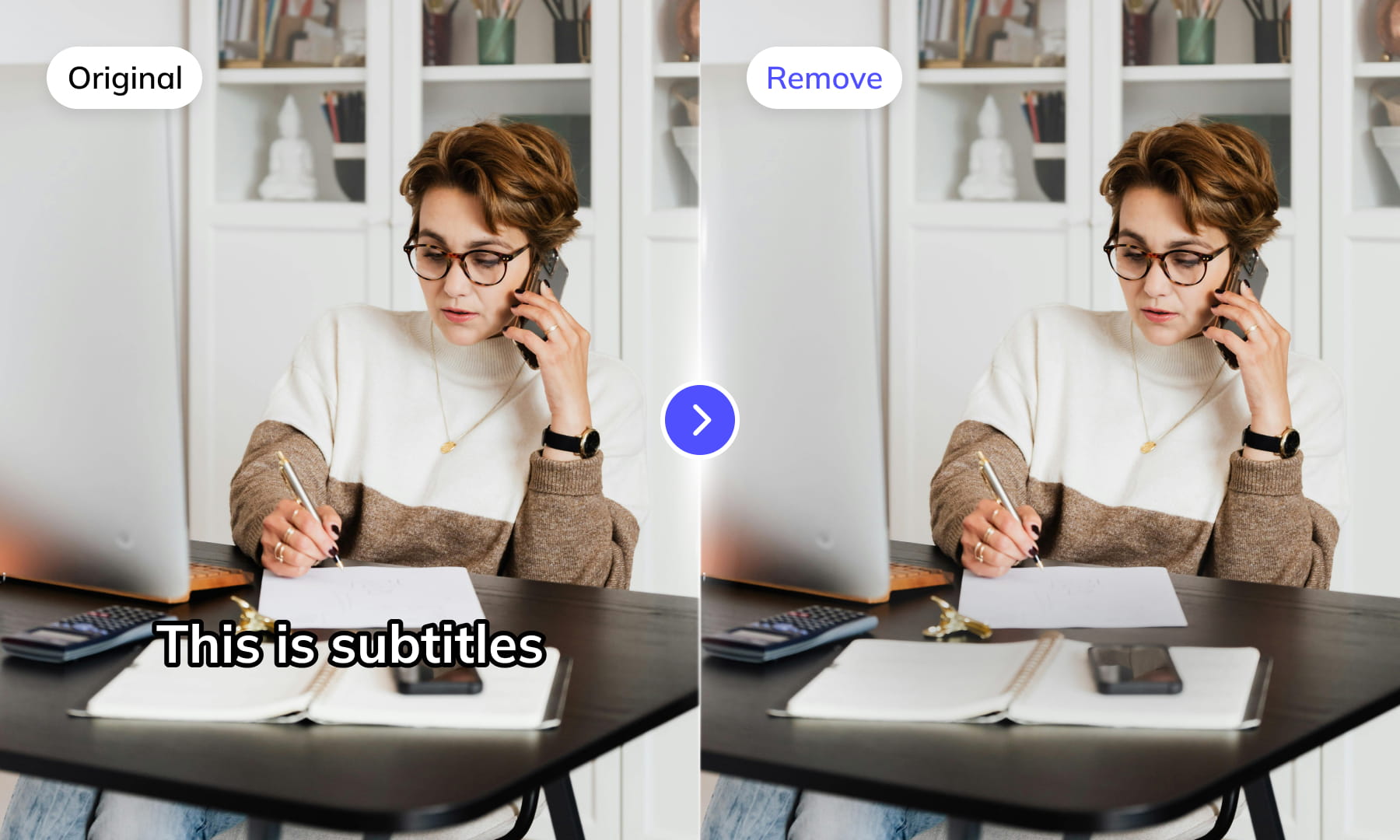
Use Weydub to remove selected subtitles and on-screen text from video. Review the repaired background and retained graphics before downloading the result for editing or localization.
AI-Assisted Text Selection
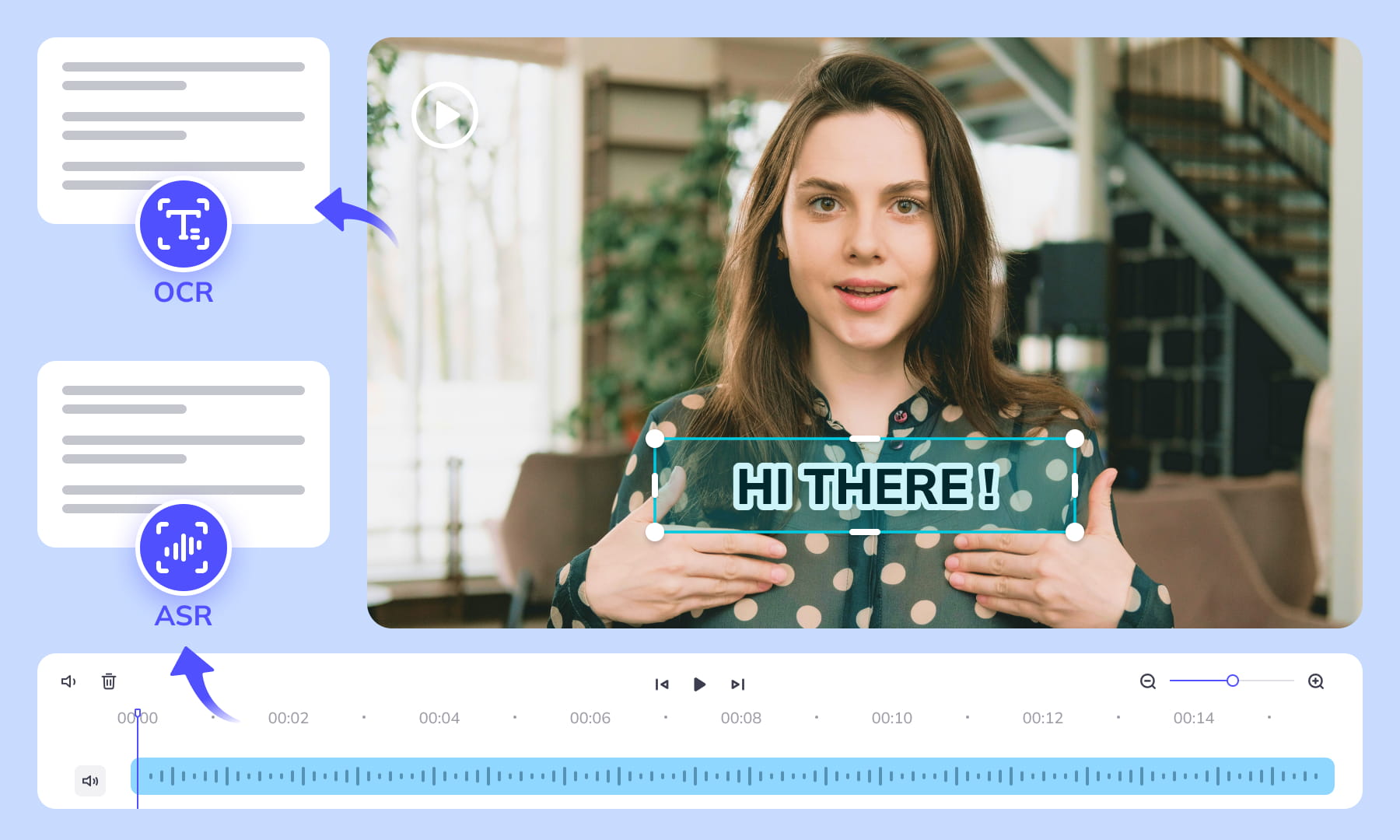
Use AI-assisted text detection to prepare the cleanup. Review the selected regions and keep any text or graphics that should remain. Inspect the repaired video before moving it into the next workflow.
Background Repair and Review
AI repairs the area behind removed text. Results depend on the background, motion, and text placement. Compare repaired frames with the source, especially around faces, fine textures, and scene changes.
High-Volume Batch Capabilities & API Integration
Organize subtitle and text removal across multiple video files with batch workflows. Use the API for automated submissions, and check the settings and results for each source video.
Intelligent Multi-Language Support
Our system automatically identifies and removes text or subtitles in many languages. This is essential for repurposing content internationally and ensuring your AI video tools cater to a global audience, especially when working across multiple platforms.
Review Pricing Before Submission
Check the current Pricing page and the estimate shown for your task. Choose the processing options that fit the footage, and review the displayed cost before confirming.
Browser-Based Convenience
No downloads or installations necessary! Conveniently remove text from your Remix videos online through our intuitive subtitle removal interface. Compatible across platforms (Windows, Mac) and mobile devices (iPhone, Android).
One-Stop AI Localization Workflow Effortlessly Globalize Your Videos
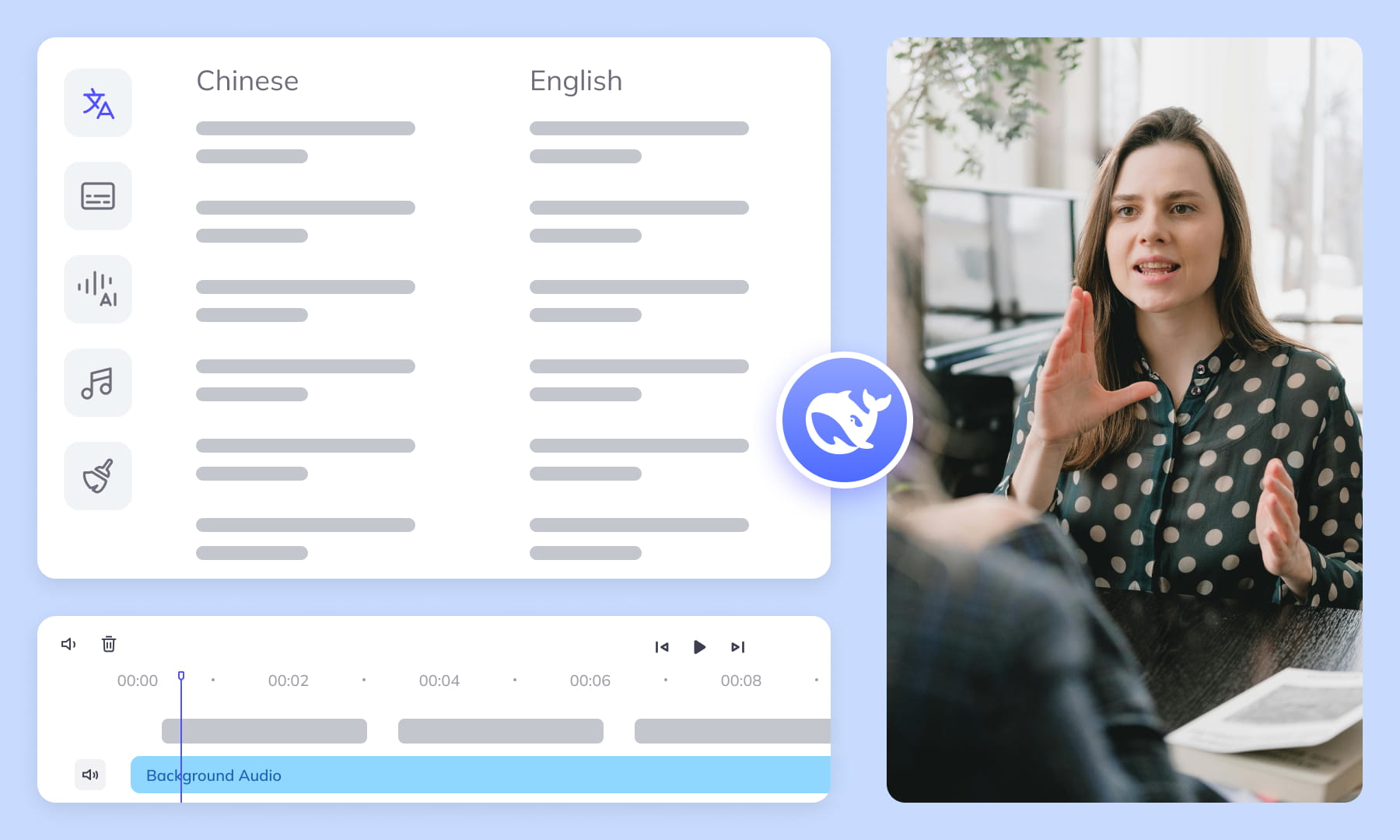
Weydub offers a revolutionary, all-in-one platform where every step, from subtitle generation to final rendering, seamlessly integrates.
Project Management
Organize projects and source assets for batch workflows. Review task settings and outputs for each video before delivery.

Export & Download
Review subtitle timing and any dubbed audio before delivery. Check the video and project export options available for the selected workflow.
Remove More Text from remix Videos for Easier Reuse


Frequently Asked Questions
Where can I check pricing and available trial credits?
Check the current Pricing page and your account balance before submitting a task. Available trial credits, paid options, and the cost shown for your selected workflow should guide your decision. Review the task settings and displayed estimate before confirming; this guide does not promise a fixed free allowance or a specific price.How best to remove subtitles/text from Remix videos?
Upload the final Remix video, identify hardcoded subtitles or other visible lettering, and select the text regions that need repair. Include captions that moved after cuts, repeated samples, or speed changes. Keep visual text that belongs to the creative source clip. Review repaired frames around transitions and moving backgrounds before downloading the output.How does Weydub's AI remove subtitles from Remix videos?
Weydub processes visible text inside the video picture and repairs the selected area using surrounding visual information. For a Remix, inspect cuts between sampled footage and new commentary because caption position, outlines, and backgrounds may change abruptly. An external selectable subtitle track is separate from hardcoded picture text and should be handled independently.Will subtitle removal affect video quality or cause blur?
Background repair can vary with the footage. Static areas are generally easier to reconstruct than fast motion, detailed textures, flashing effects, or text crossing faces and objects. In Remix videos, check frames around jump cuts, repeated samples, and speed changes. Preview repaired backgrounds closely and revise the selected region if blur, smearing, or leftover outlines remain.Do I need professional video editing experience?
Start by choosing footage and identifying the text you want to remove. You do not need a full editing project, but you should compare the repaired frames with the original video before publishing. Moving backgrounds, overlapping graphics, and text near faces may require closer review and adjustments to the selected region.Is manual selection needed for text removal from Remix videos?
Check the current workflow choices after uploading. Whether initial regions are suggested or selected manually, verify every text region yourself. Remix layouts can alternate between sampled dialogue, reaction commentary, lyrics, and source graphics. Adjust the region when lettering moves, changes position after a cut, or overlaps a subject that should remain visible.What types of text or elements can Weydub remove?
Use the removal workflow for hardcoded subtitles and other visible text within the picture, including titles, labels, scrolling text, and overlaid marks when they can be isolated as regions. Multiple text layers may require separate selections. Do not remove lyrics or source graphics merely because they appear in a sample; decide whether each element belongs in the finished Remix.What other languages/platforms are supported for removal?
Text removal works on visible pixels rather than requiring speech transcription or a recognition language. Check the current upload requirements and workflow choices for your video. Scripts with dense strokes, vertical layout, outlines, or mixed writing systems may need tighter region boundaries and closer review. The workflow processes an uploaded file; it does not edit a third-party account directly.Does Weydub support batch removal of subtitles from Remix videos?
Weydub can support batch workflows. Prepare files with consistent region needs when possible, but review each Remix separately because cuts, caption placement, repeated samples, and moving backgrounds can differ. Confirm the current batch options before submission. After processing, inspect representative frames and difficult transitions in every output rather than assuming one successful repair applies to the whole batch.Can I use Weydub on mobile devices for video text removal?
Weydub uses a browser workflow, so check the current browser and upload requirements on your device. A desktop screen is preferable for drawing precise text regions, comparing nearby frames, and reviewing several Remix outputs. On a smaller screen, zoom in carefully around thin outlines, scrolling text, faces, and fast transitions before accepting repaired frames.Can I combine subtitle removal with translation or other tools?
Treat removal and translation as separate review stages. First remove hardcoded picture text and inspect the repaired video, especially around Remix cuts and moving overlays. Then generate or translate subtitles from the final audible mix, distinguishing new commentary from sampled dialogue and retiming cues after repeats or speed changes. Download and verify each deliverable before further editing.What should I check before uploading private or licensed footage?
Use footage you are entitled to process and check the current privacy policy and service terms before uploading sensitive material. For client projects, confirm that the agreed handling of faces, voices, personal details, and licensed media permits this workflow. Ask support about any specific retention or processing requirement rather than assuming a promise from this guide.
Common Removal Review Scenarios
Review the repaired regions in context before you reuse or localize the video.