
Generate Accurate Subtitles for Vimeo Videos
Generate subtitle drafts for Vimeo videos using speech recognition or visible text extraction. Review wording and timing before delivery.
≤1GB, ≤15min (mp4、avi、mov、mkv、mpg)
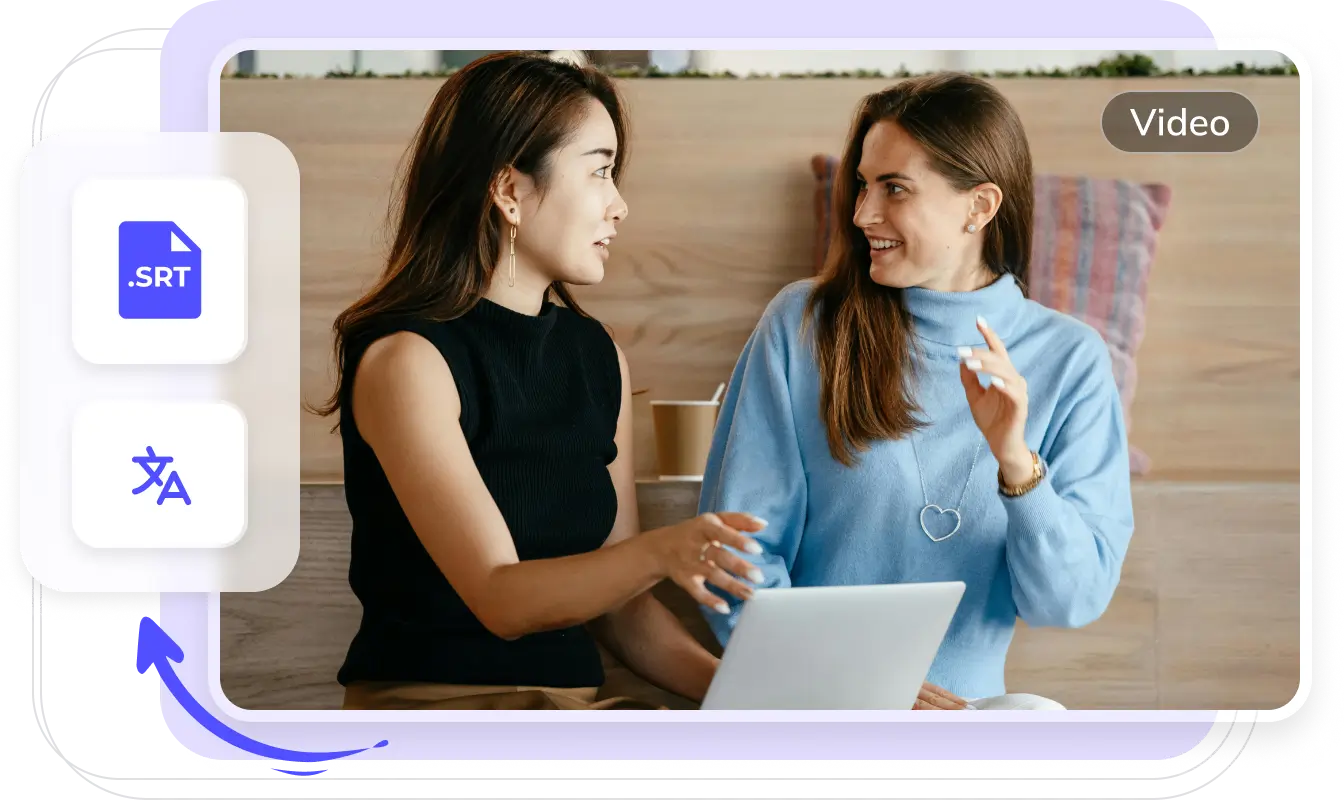
English subtitle workflow
A focused workflow for Vimeo subtitle generation
Build a clean subtitle track for Vimeo video content with a workflow tuned to the way this content is produced, reviewed, and delivered.
- Prepare Vimeo footage and keep the original speech context visible
- Generate a timed subtitle track and review names, terms, and line breaks
- Export an editable subtitle file for localization or publishing workflows
How to Create Accurate Vimeo Video Subtitles with AI?
Generate accurate AI subtitles in 3 easy steps with Weydub
Upload Video
- Select and batch upload Vimeo videos from your device.
- Or, paste video links from social media.

Choose Generation Settings
- Specify the video's original language and generation mode (via ASR or OCR).
- Check translation and calibration options and their displayed cost before submission.
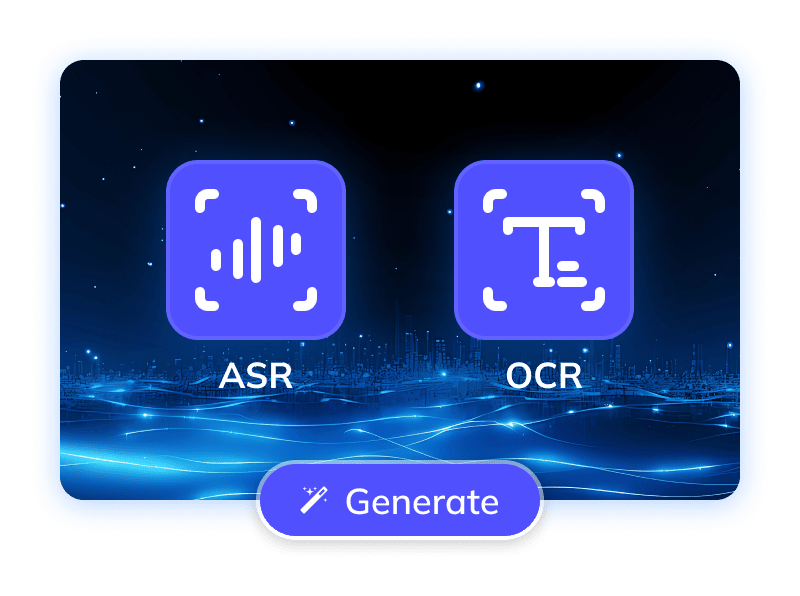
Process & Download
- Auto generate subtitles with precise timestamps for your Vimeo videos.
- Once done, batch download original/translated SRTs, edit online, or use AI dubbing.
Vimeo
Vimeo, a vital platform for professionals and creators, increasingly demonstrates global influence. Yet, language barriers and silent viewing habits challenge Vimeo videos in reaching potential worldwide audiences. For meticulously produced Vimeo contentbe it creative shorts, documentaries, or educational coursesto achieve wider reach and higher completion rates, accurate, synchronized captions are crucial. They offer an accessible viewing experience for diverse linguistic backgrounds and significantly boost overall video accessibility. Therefore, efficient Vimeo video captioning is a key tool for creators and businesses pursuing global strategies. Leveraging smart technology to auto-generate or optimize captions drastically shortens production time, ensuring precise information. This strategy enhances Vimeo content's search engine performance, attracting organic traffic, and effectively connects with global audiences, unlocking Vimeo's full market potential. Professional caption generation services are thus an indispensable asset for Vimeo video content to succeed globally
Generating Accurate Subtitles for Vimeo Videos: A Complex Task
The complexity of Vimeo video subtitling primarily stems from the need for deep integration with the platform's technical ecosystem. Accurate Automatic Speech Recognition (ASR) must overcome Vimeo's diverse video formats and audio quality challenges to ensure precise dialogue capture. Subsequently, generated subtitles must strictly adhere to Vimeo player standards (VTT, SRT), accurately match timestamps, and ensure display compatibility across multiple devices. This not only tests subtitle file optimization and player parsing capabilities but also significantly challenges content creators' workflows for batch generation, seamless upload, and management of vast Vimeo subtitle libraries. These overlapping technical barriersfrom recognition and format compatibility to cross-platform presentationmandate that high-quality Vimeo subtitle solutions balance technical accuracy, platform adaptability, and user convenience
Trusted by 2,000,000+ Creators and Businesses

















Overcoming Challenges Generate Vimeo Video Subtitles Accurately with AI
To maximize accuracy in Vimeo video subtitle generation and ensure a smooth user experience, Weydub's subtitle feature is meticulously optimized, integrating multiple AI technologies.
Speech Recognition and Visible Subtitle Extraction
Choose ASR to transcribe speech or OCR to extract visible subtitles from Vimeo videos. Select the mode that matches the source, then review the generated text and timing.
Generate subtitles now

Speaker Labels and Dialogue Review
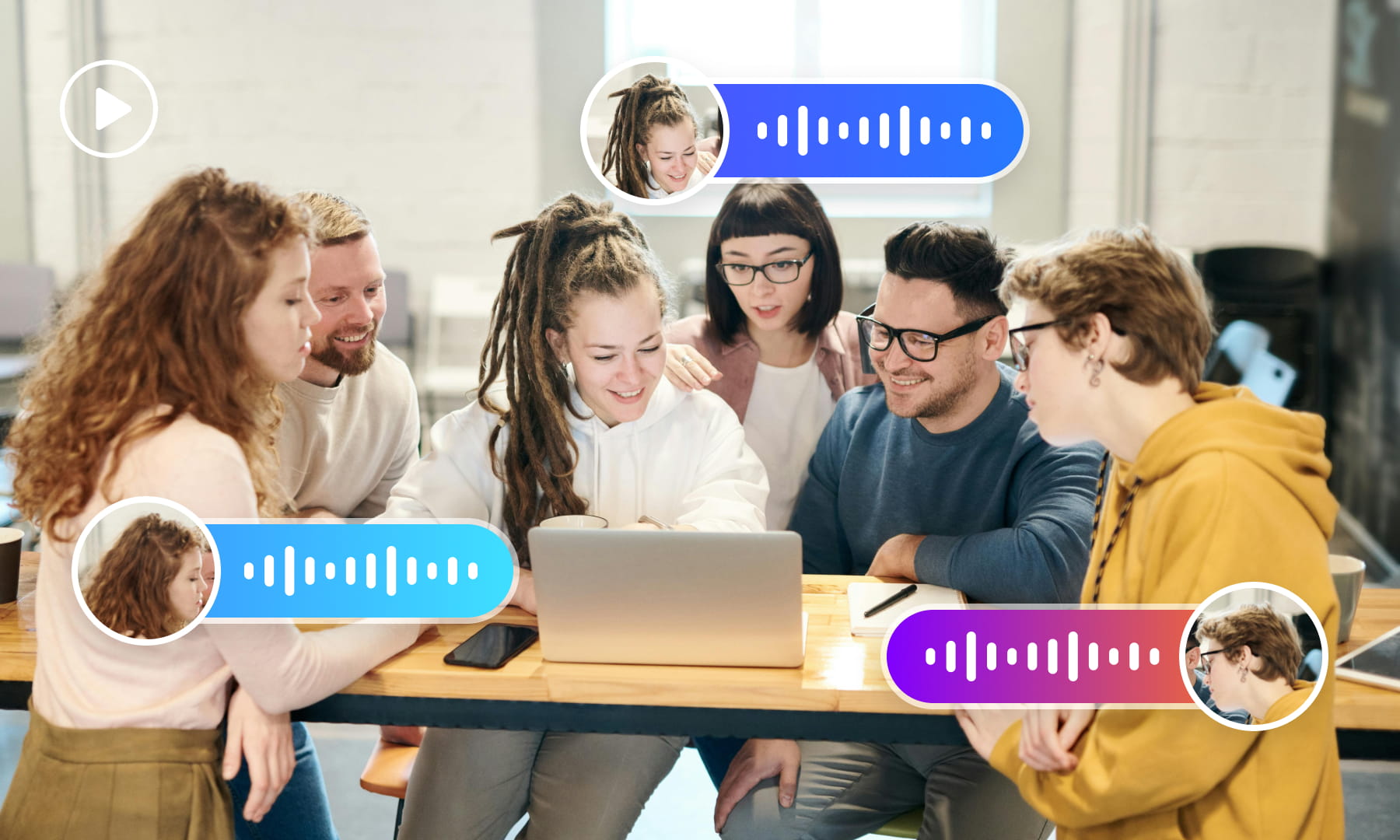
For Vimeo interviews and dialogue, review speaker labels alongside the transcript. Check overlapping speech and speaker changes before handing subtitles to an editor or dubbing workflow.
Generate subtitles nowReview Speech Against Background Noise
Background music and other noise can affect Vimeo speech recognition. Compare the generated transcript with the original audio and correct words that are obscured or unclear.
Generate subtitles now
Subtitle Region Selection
Select the subtitle area in the Vimeo video, then check the extracted text for product labels or other scene text that should not be included. Adjust the selection when captions move or overlap other content.
Generate subtitles nowMulti-line Subtitle Review
Review multi-line Vimeo captions as complete subtitle entries. Check that line grouping preserves reading order and that text from neighboring overlays has not been merged into the same cue.
Generate subtitles now
Contextual Subtitle Calibration
Use calibration to review a subtitle draft in context. Compare names, terminology, and ambiguous wording against the source; automated suggestions still require review before publication.
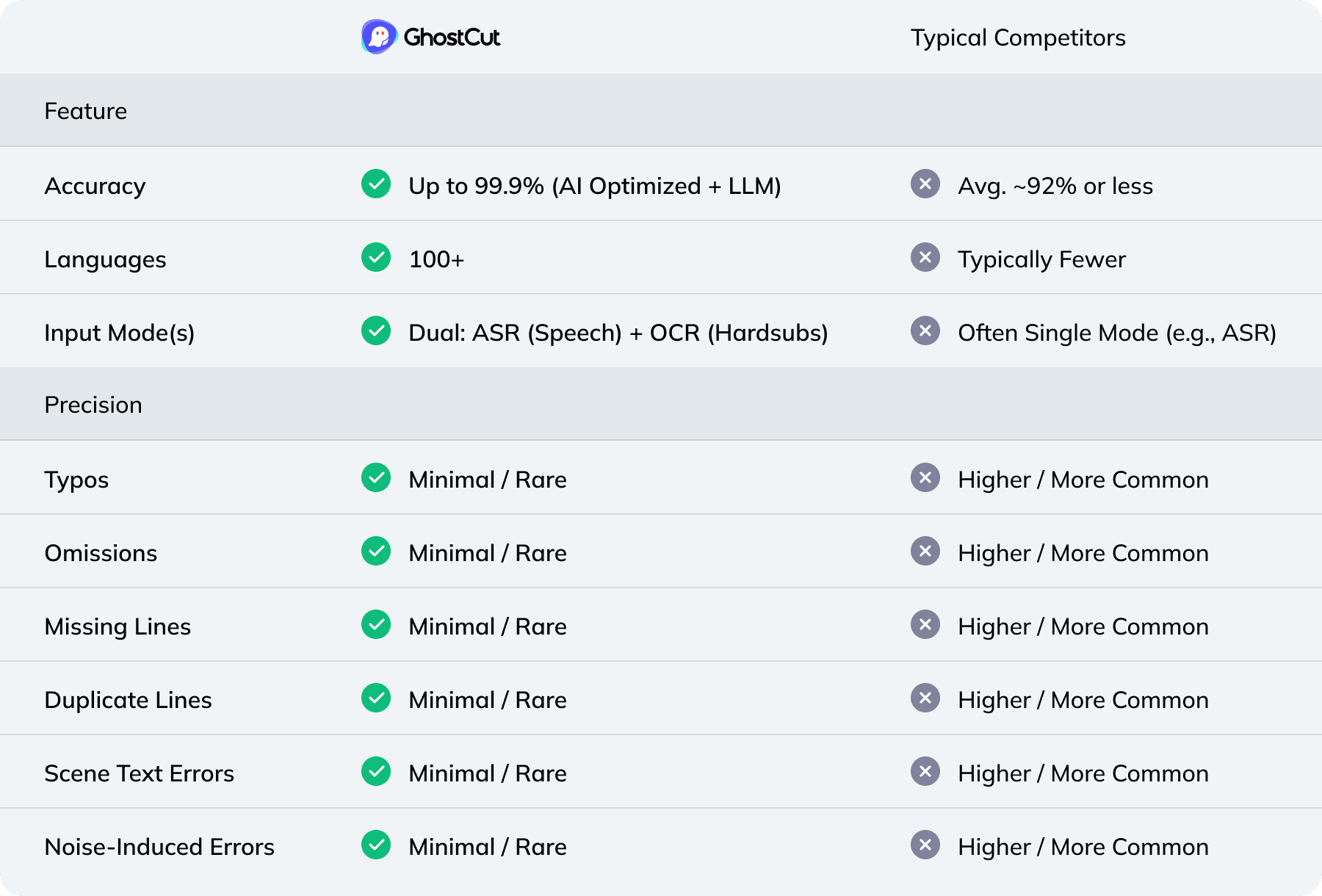
Generate subtitles nowCompare Recognition Modes and Review Options
Weydub: Your one-stop video localization workbench
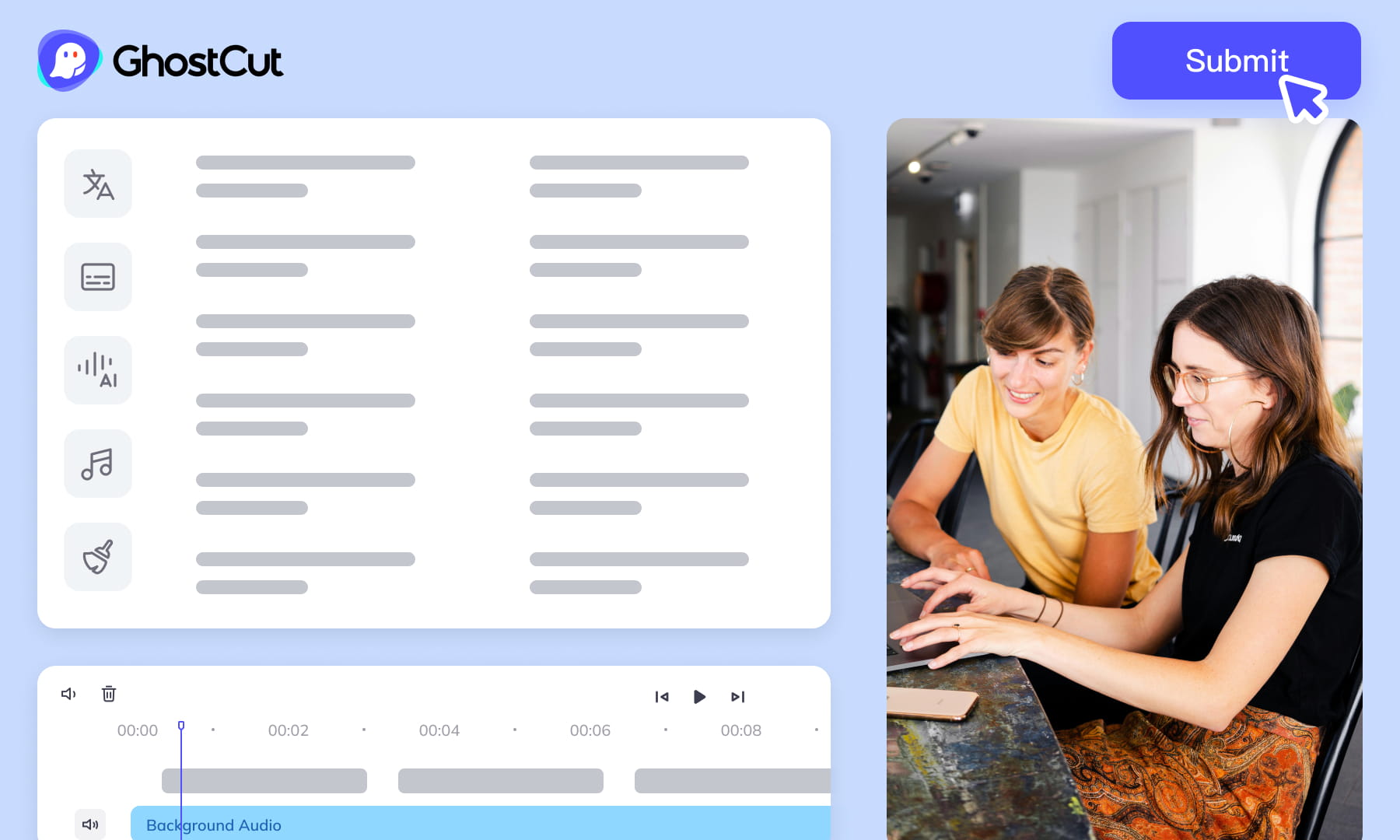
Prepare subtitles, review translations, and coordinate video localization in one workspace. Choose the tools needed for each source video and check the output before moving to the next step.
Project Management & Batch Processing
Organize source assets and use batch workflows for related videos. Check task limits, settings, and results for each file before delivery.
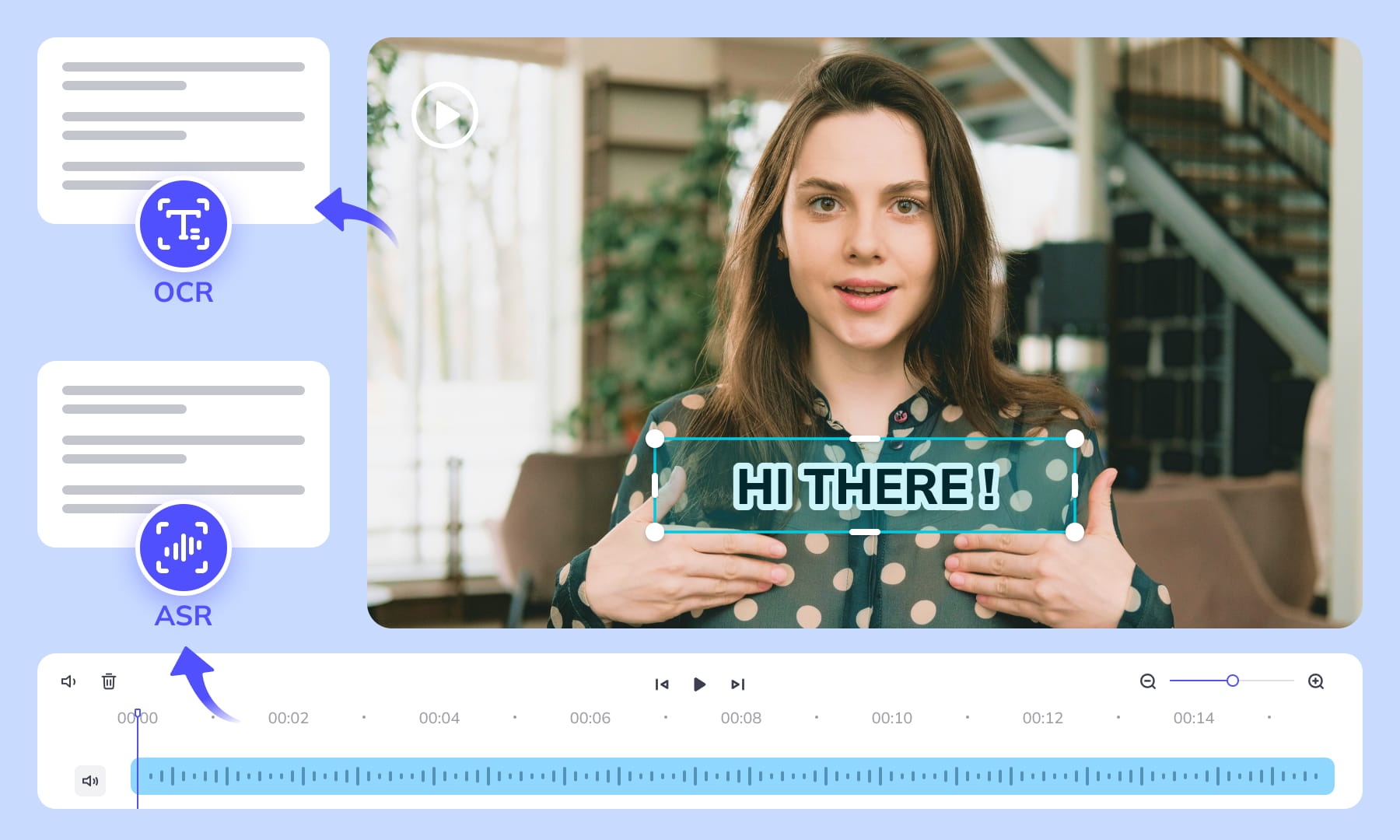
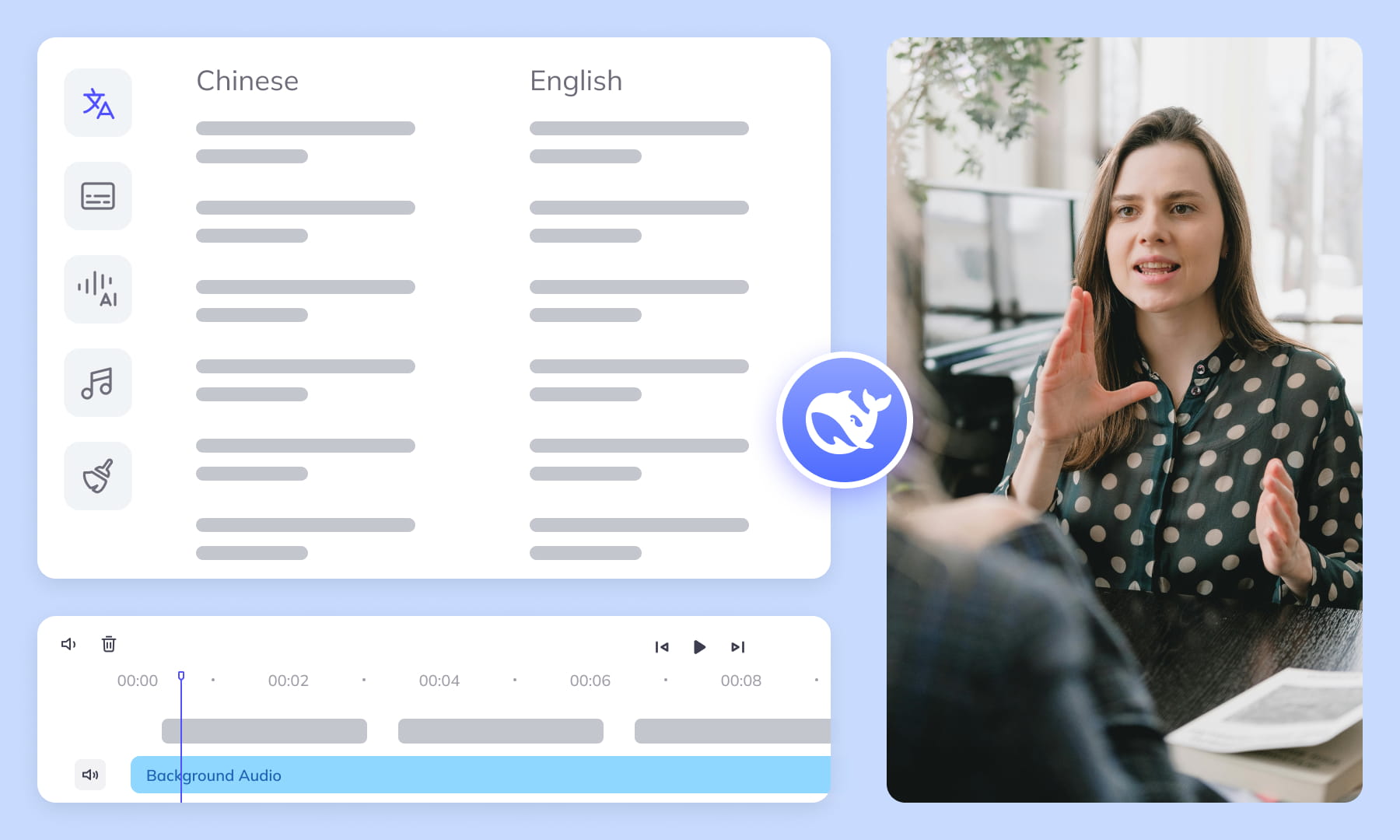
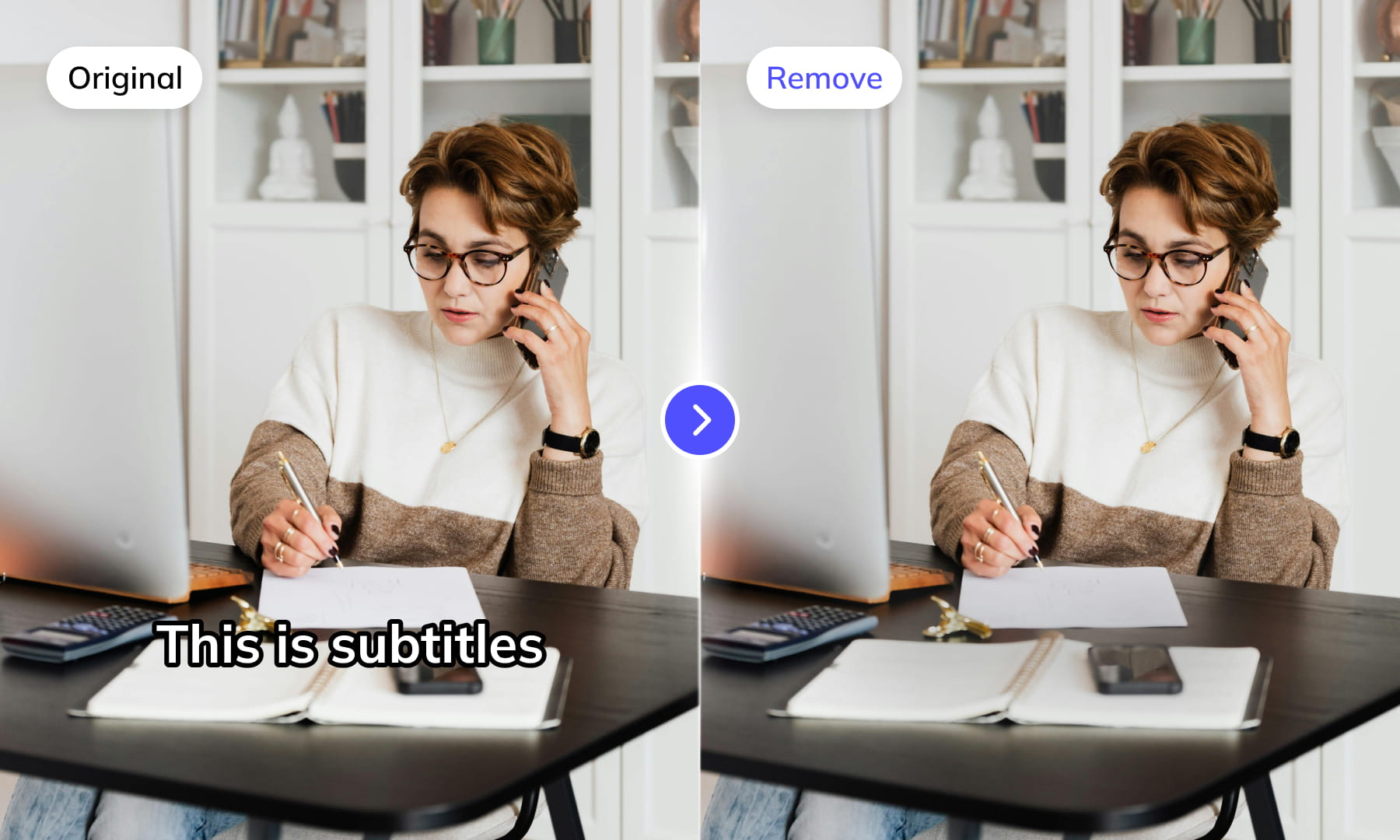
Automated Editing & Export
Auto-render and sync video, subtitles, AI dubs, and music. Ensures precise A/V alignment. Export project files compatible with professional NLEs (like Jianying/CapCut).
Meeting All-Scenario, Multilingual Video Subtitle Generation Needs.

Content Creators: Boost Appeal & Widen Reach

Short Drama Production: Powering Efficient Production & Market Expansion

E-commerce: Drive Engagement & Boost Sales Conversions

Animation & Film Entertainment: Accelerate Global Simultaneous Releases

Gaming Industry: Enhance Local Experience & Global Launch Efficiency

Multinational Corporate Communications & Training: Ensure Accurate Information Delivery

News Media & Broadcasting: Improve Timeliness & Public Coverage

Market Research & User Insights: Efficiently Analyze Qualitative Data
Video Tutorial
Frequently Asked Questions
Where can I check pricing and available trial credits?
Check the current Pricing page and your account balance before submitting a task. Available trial credits, paid options, and the cost shown for your selected workflow should guide your decision. Review the task settings and displayed estimate before confirming; this guide does not promise a fixed free allowance or a specific price.How accurate is Weydub's OCR for Vimeo subtitle extraction?
Accuracy depends on image clarity, text contrast, motion, compression and overlapping graphics. Use OCR for hardcoded subtitles in a creator-supplied playable export, then manually check names, client terminology, punctuation and missed text. Confirm that the approved cut was uploaded, because a revised picture edit can change both extracted content and its timing.Can I batch extract subtitles from multiple Vimeo videos?
Yes, the workflow supports batch processing for creator-supplied video files. Keep each portfolio film, client presentation or reviewed cut clearly labeled, and verify that every item matches the approved version. Review each video's output separately for names, terminology, line breaks and timing rather than assuming one successful result applies across the whole batch.How do I review generated Vimeo video subtitles?
Compare the generated subtitles with the approved playable cut while checking spoken words, names, client terminology, punctuation, line breaks and timing. Use speech recognition for dialogue and OCR when text is already visible in the image. Manually correct uncertain passages, and repeat the timing review if the client supplies a revised picture edit.Do I need professional video editing experience?
Start by choosing a video and the appropriate subtitle workflow. You do not need to prepare a full editing project, but you should review recognized wording, names, timing, and line breaks before publishing. Specialized dialogue may need a knowledgeable reviewer, especially when a small transcription error changes the meaning.What other languages does Weydub support for subtitle timing?
Check the current language choices shown for the relevant recognition mode before processing. OCR availability concerns visible text, while speech recognition availability concerns spoken audio, so one does not establish the other. After generation, review language-specific spelling, punctuation, segmentation and reading order, especially where names or client terminology may not follow standard dictionary forms.Is there a video length limit for Vimeo videos?
Check the current upload requirements in Weydub before submitting the creator-supplied playable export. If a reviewed cut does not meet those requirements, prepare an appropriate source file without changing the approved content. Keep version labels intact and record which file was submitted so subtitle review remains tied to the correct picture edit throughout the client handoff.How do I style generated Vimeo video subtitles?
First review and download the subtitle file, then apply fonts, colors, positioning and other visual treatment in a compatible downstream editor. Keep line breaks readable and avoid covering names, lower-thirds or portfolio graphics. Before delivery, confirm that the styling and subtitle format suit the current destination player or the client's private review workflow.How do I extract hardcoded subtitles from a Vimeo video?
Obtain a creator-supplied playable export and select OCR because hardcoded subtitles are pixels in the picture, not an external text track. Review the extracted subtitle file for missed frames, overlapping graphics, punctuation and line breaks. Confirm names against the client glossary, and recheck timing whenever a revised cut changes shot lengths or text placement.What's the difference between external and hardcoded subtitles?
External subtitles are stored separately from the video and can be delivered as a subtitle file when compatible with the destination player. Hardcoded subtitles are visible pixels inside the picture and require OCR for extraction. Speech recognition instead transcribes spoken audio. Identify the source type first, then review text, timing and line breaks before the client handoff.What should I check before uploading private or licensed footage?
Use footage you are entitled to process and check the current privacy policy and service terms before uploading sensitive material. For client projects, confirm that the agreed handling of faces, voices, personal details, and licensed media permits this workflow. Ask support about any specific retention or processing requirement rather than assuming a promise from this guide.