
Generate Accurate Subtitles for Triller Videos
Generate subtitle drafts for Triller videos using speech recognition or visible text extraction. Review wording and timing before delivery.
≤1GB, ≤15min (mp4、avi、mov、mkv、mpg)
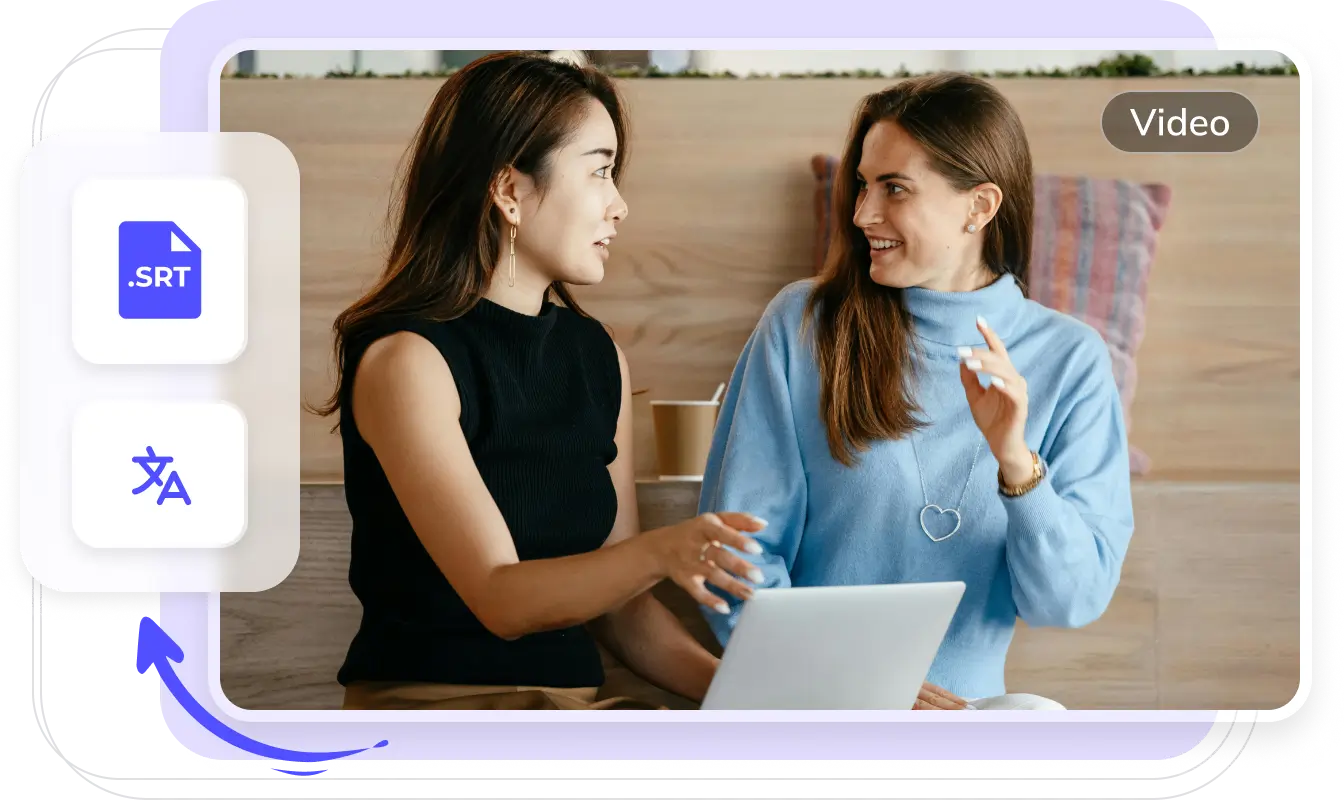
English subtitle workflow
A focused workflow for Triller subtitle generation
Build a clean subtitle track for Triller video content with a workflow tuned to the way this content is produced, reviewed, and delivered.
- Prepare Triller footage and keep the original speech context visible
- Generate a timed subtitle track and review names, terms, and line breaks
- Export an editable subtitle file for localization or publishing workflows
How to Create Accurate Triller Video Subtitles with AI?
Generate accurate AI subtitles in 3 easy steps with Weydub
Upload Video
- Select and batch upload Triller videos from your device.
- Or, paste video links from social media.

Choose Generation Settings
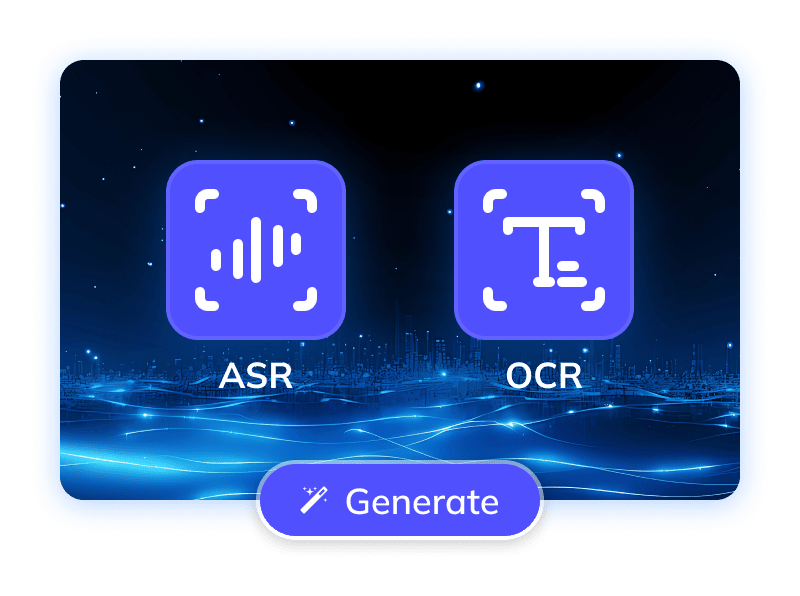
- Specify the video's original language and generation mode (via ASR or OCR).
- Check translation and calibration options and their displayed cost before submission.
Process & Download
- Auto generate subtitles with precise timestamps for your Triller videos.
- Once done, batch download original/translated SRTs, edit online, or use AI dubbing.

Subtitle Generation for Triller Videos
Given silent viewing on platforms like Triller, clear, accurate subtitles are vital for user experience and accessibility. For Triller videos targeting global audiences, efficient and precise subtitle generation is fundamental for international dissemination. Well-crafted subtitles ensure accurate information delivery, cater to diverse language viewers, and boost content interactivity and global influence. Thus, professional subtitle solutions are a market imperative for Triller content to break language barriers and gain global attention
Generating Precise Subtitles for Triller Videos: A Unique Mobile Short Video Challenge
Generating accurate and natural subtitles for Triller videos is a challenging task, with initial hurdles arising from input recognition. Automatic Speech Recognition (ASR) struggles with Triller content due to loud background music, varied recording environments, colloquialisms, and fast speech lacking clear word boundaries. Furthermore, Triller's distinct rapid editing, multi-layered visual effects, and user-defined elements present a complex display challenge: ensuring transcribed subtitles are clear, visible, and aesthetically integrated. These cumulative difficulties in recognition, comprehension, and presentation constitute a significant technical barrier. Solutions must therefore balance ASR accuracy, text processing precision, and professional dynamic display output
Trusted by 2,000,000+ Creators and Businesses


















Overcoming Challenges Generate Triller Video Subtitles Accurately with AI
To maximize accuracy in Triller video subtitle generation and ensure a smooth user experience, Weydub's subtitle feature is meticulously optimized, integrating multiple AI technologies.
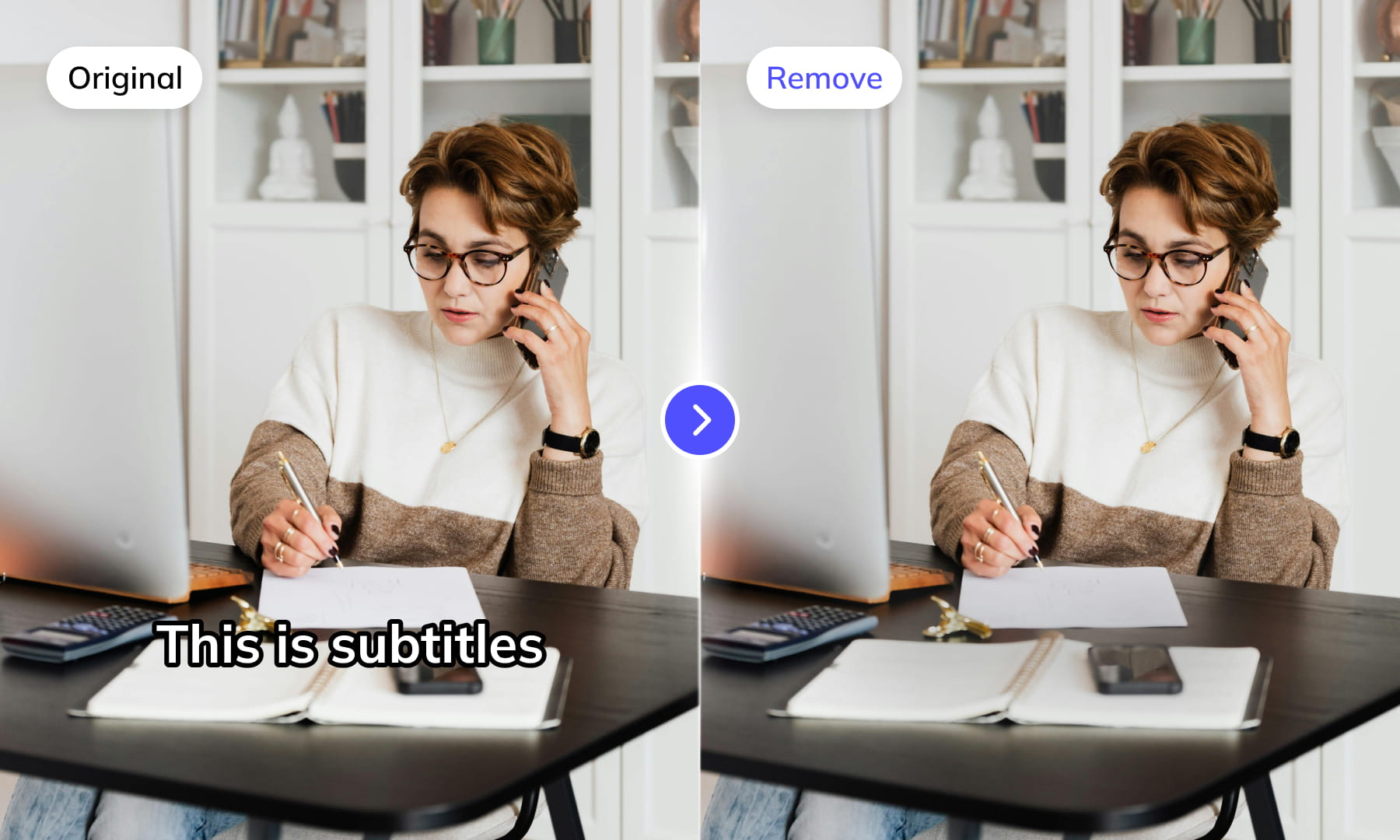
Speech Recognition and Visible Subtitle Extraction
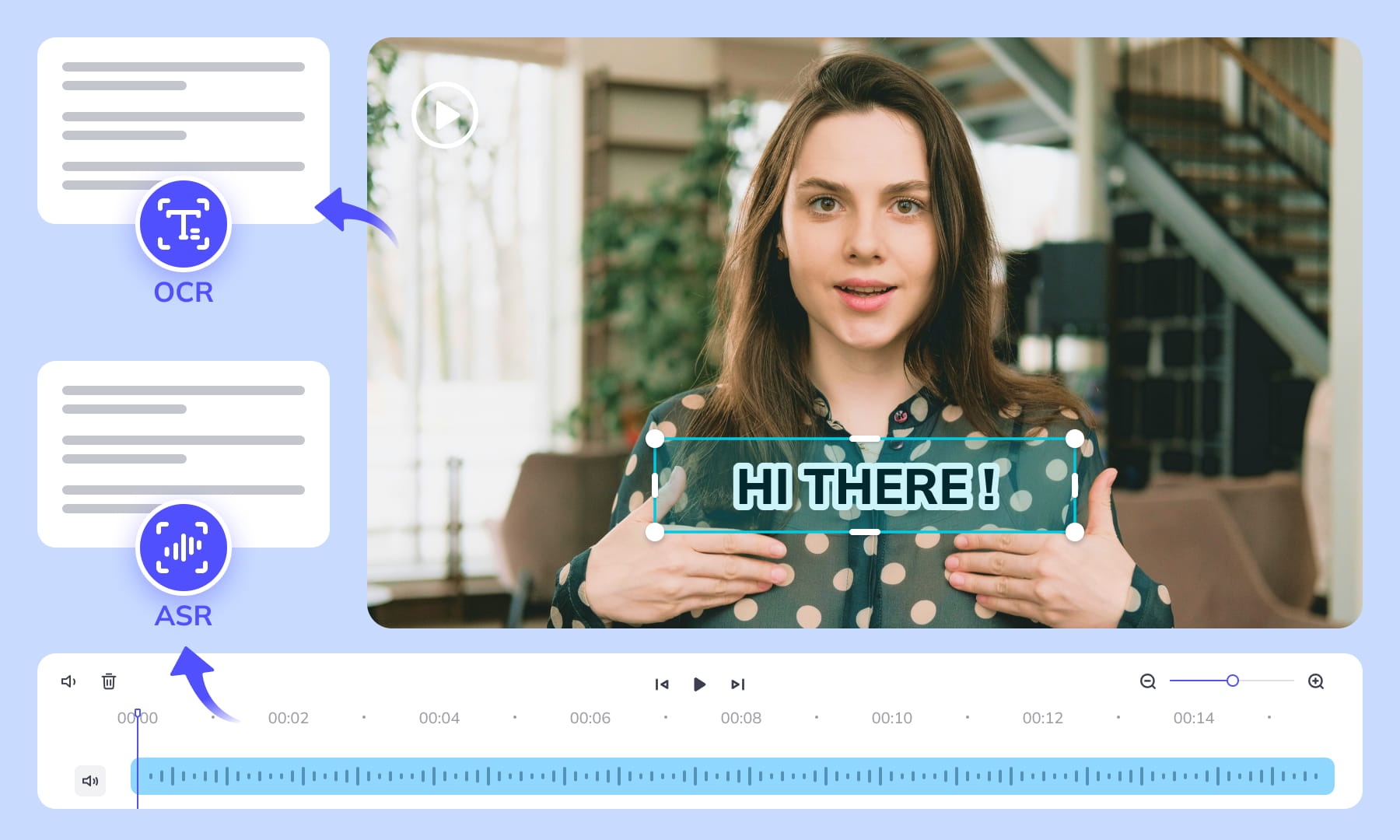
Choose ASR to transcribe speech or OCR to extract visible subtitles from Triller videos. Select the mode that matches the source, then review the generated text and timing.
Generate subtitles now

Speaker Labels and Dialogue Review
For Triller interviews and dialogue, review speaker labels alongside the transcript. Check overlapping speech and speaker changes before handing subtitles to an editor or dubbing workflow.
Generate subtitles nowReview Speech Against Background Noise
Background music and other noise can affect Triller speech recognition. Compare the generated transcript with the original audio and correct words that are obscured or unclear.
Generate subtitles now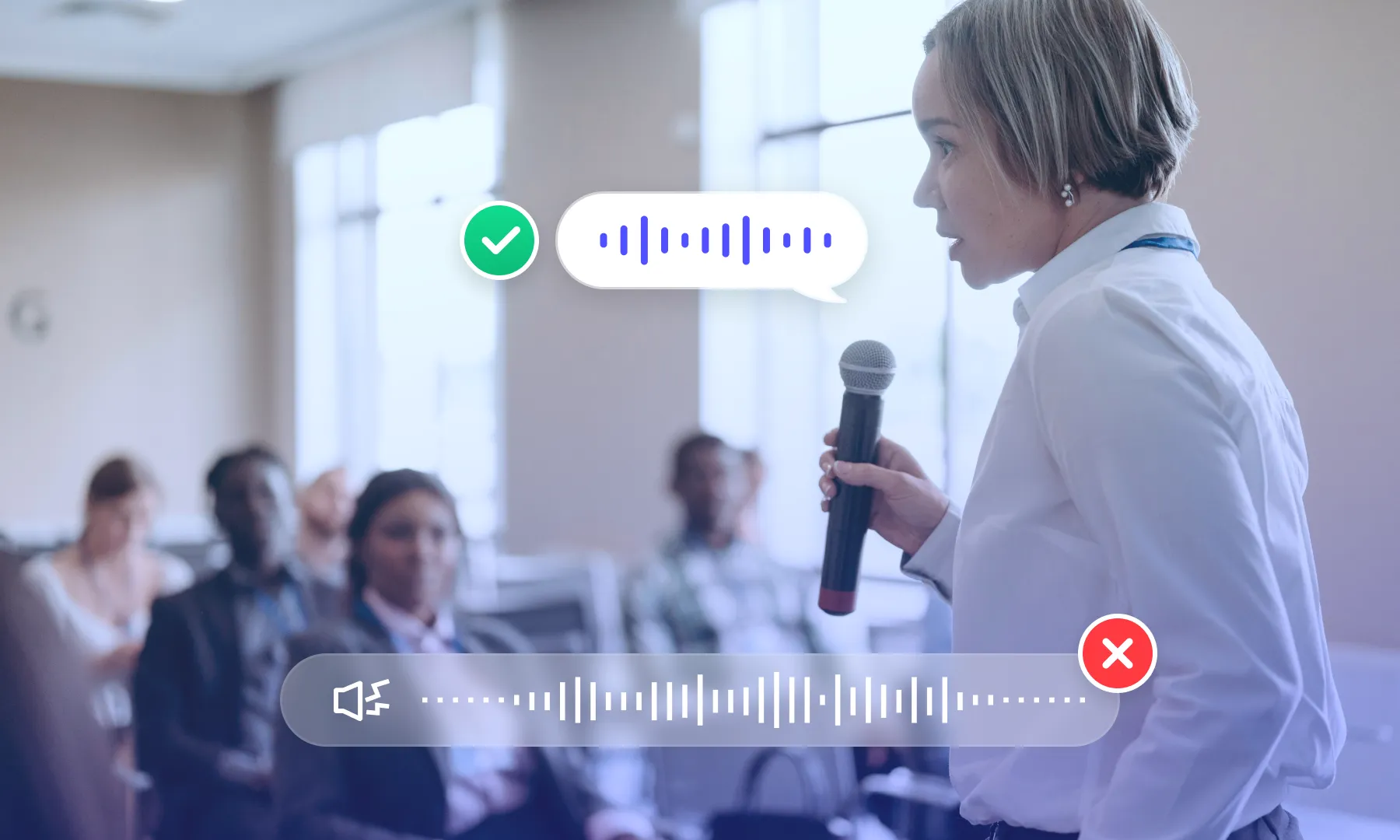

Subtitle Region Selection
Select the subtitle area in the Triller video, then check the extracted text for product labels or other scene text that should not be included. Adjust the selection when captions move or overlap other content.
Generate subtitles nowMulti-line Subtitle Review
Review multi-line Triller captions as complete subtitle entries. Check that line grouping preserves reading order and that text from neighboring overlays has not been merged into the same cue.
Generate subtitles now
Contextual Subtitle Calibration
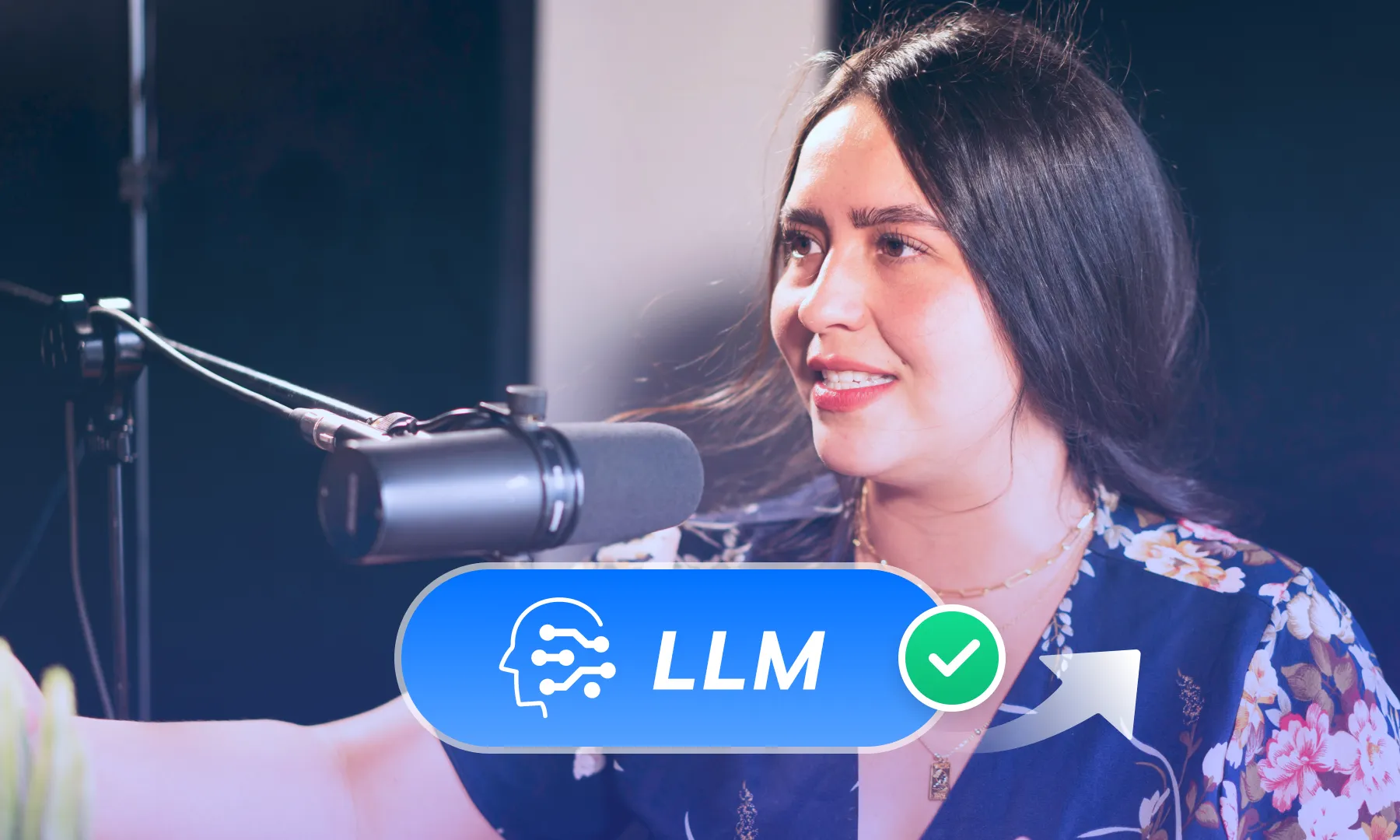
Use calibration to review a subtitle draft in context. Compare names, terminology, and ambiguous wording against the source; automated suggestions still require review before publication.
Generate subtitles nowCompare Recognition Modes and Review Options
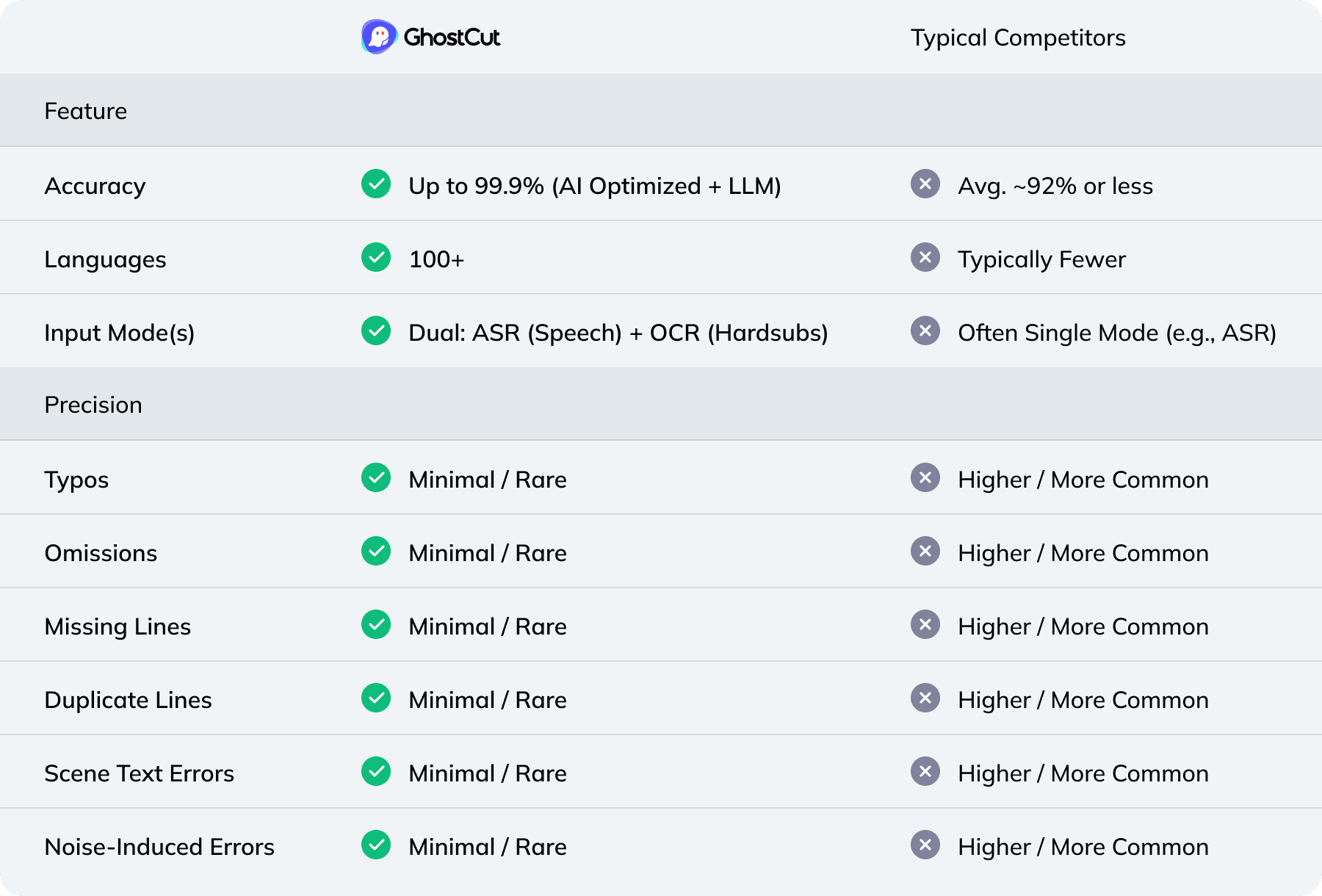
Weydub: Your one-stop video localization workbench
Prepare subtitles, review translations, and coordinate video localization in one workspace. Choose the tools needed for each source video and check the output before moving to the next step.
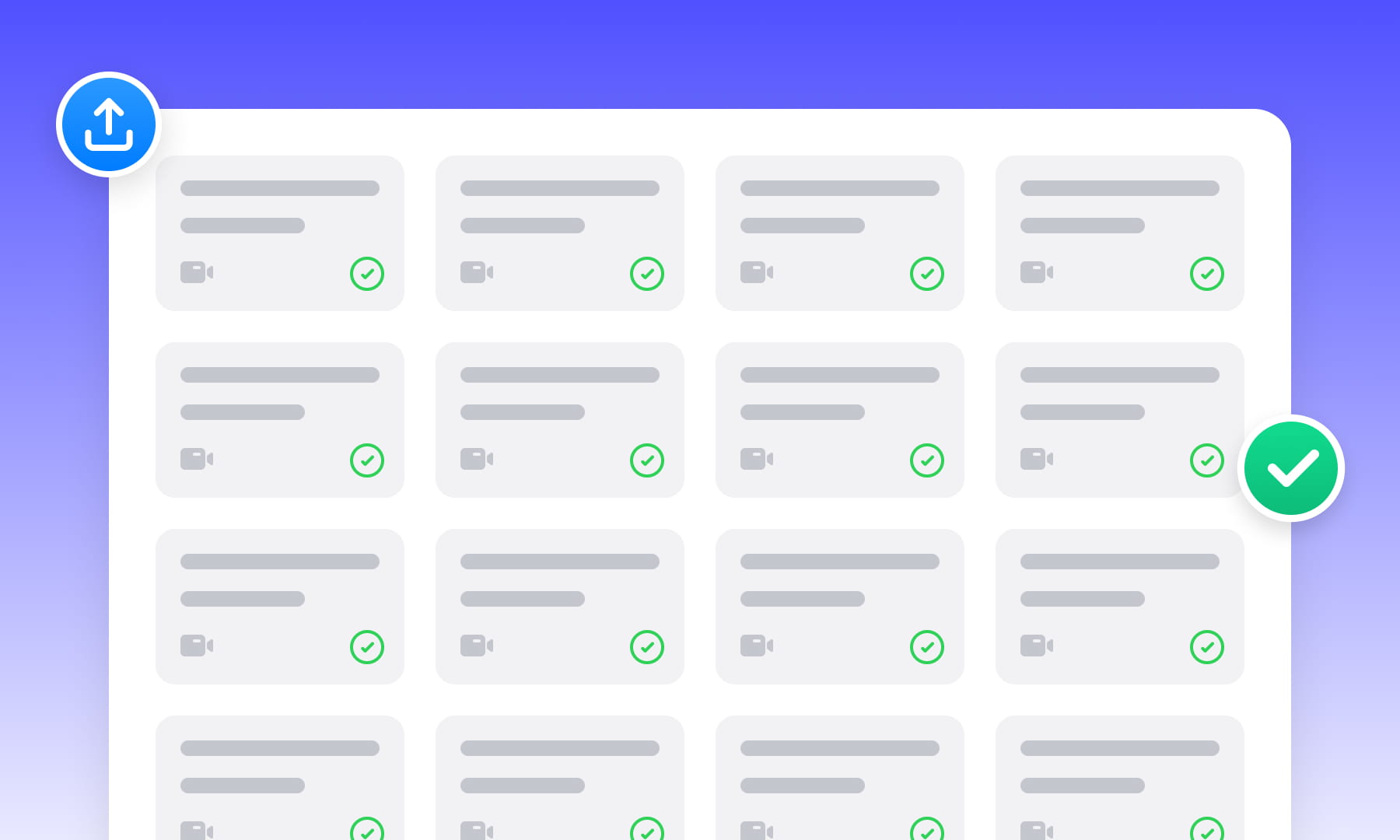
Project Management & Batch Processing
Organize source assets and use batch workflows for related videos. Check task limits, settings, and results for each file before delivery.
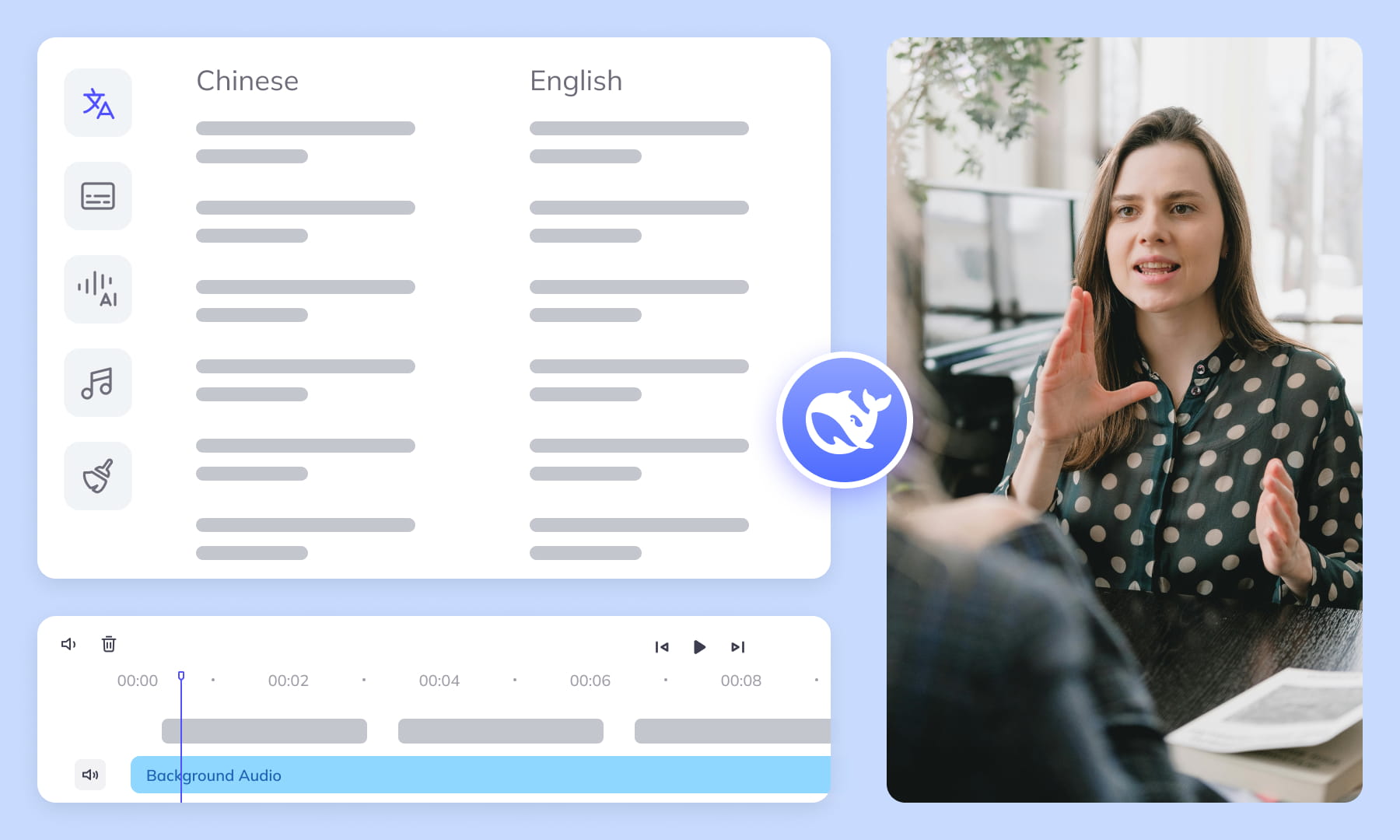

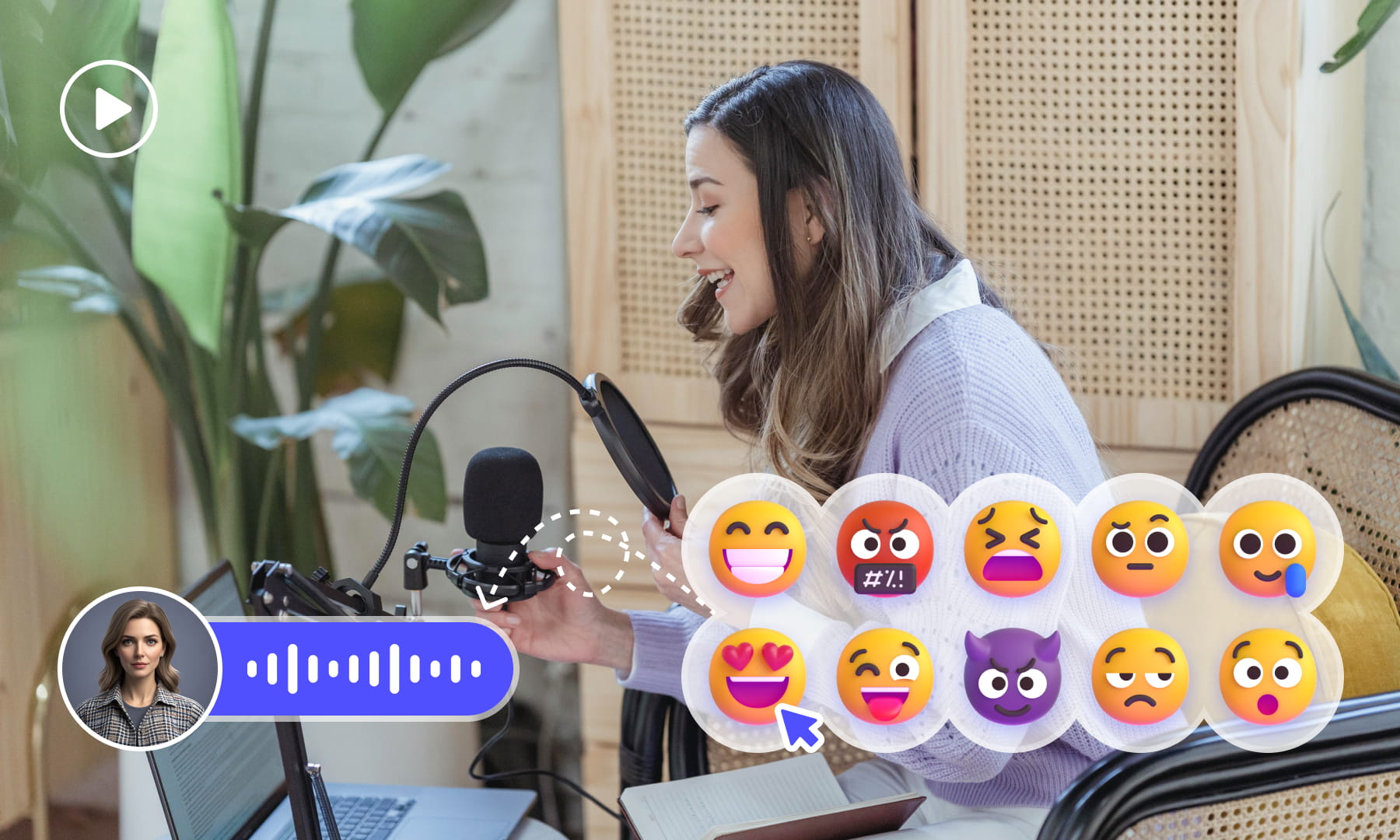
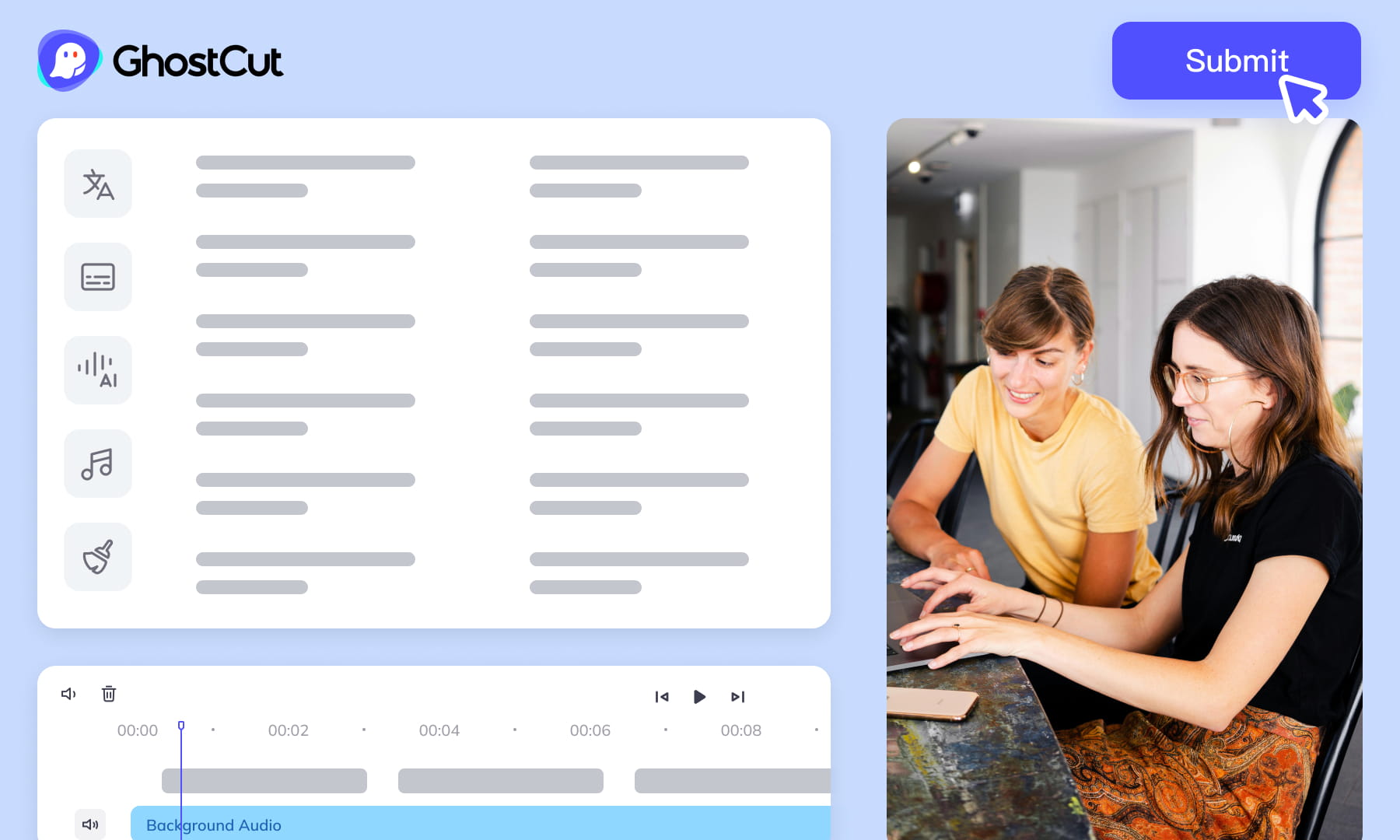
Automated Editing & Export
Auto-render and sync video, subtitles, AI dubs, and music. Ensures precise A/V alignment. Export project files compatible with professional NLEs (like Jianying/CapCut).
Meeting All-Scenario, Multilingual Video Subtitle Generation Needs.

Content Creators: Boost Appeal & Widen Reach
Short Drama Production: Powering Efficient Production & Market Expansion

E-commerce: Drive Engagement & Boost Sales Conversions

Animation & Film Entertainment: Accelerate Global Simultaneous Releases

Gaming Industry: Enhance Local Experience & Global Launch Efficiency

Multinational Corporate Communications & Training: Ensure Accurate Information Delivery

News Media & Broadcasting: Improve Timeliness & Public Coverage

Market Research & User Insights: Efficiently Analyze Qualitative Data
Video Tutorial
Frequently Asked Questions
Where can I check pricing and available trial credits?
Check the current Pricing page and your account balance before submitting a task. Available trial credits, paid options, and the cost shown for your selected workflow should guide your decision. Review the task settings and displayed estimate before confirming; this guide does not promise a fixed free allowance or a specific price.Should Triller performance audio be transcribed as new speech?
First decide whether captions should cover creator commentary, clearly audible lyrics, or visible title cards. A performance may follow an existing recording rather than contain newly spoken dialogue. Check sampled phrases against the final audio mix, and remove duplicated lines created by treating the performance and its soundtrack as separate speech.How should captions follow rhythm-led Triller cuts?
Review each subtitle cue against the final cut rather than aligning only to the musical beat. Keep phrases readable across rapid edits, split long lines at natural language boundaries, and avoid leaving a caption attached to the next shot. Repeated lyrics or commentary should still receive timing that matches each audible occurrence.How do OCR and speech recognition differ for Triller clips?
Use speech recognition for audible commentary or lyrics that you intend to caption. Use OCR for words already visible in the video image, such as title cards or hardcoded captions. If a clip contains both, review the results together and remove duplicate text where the visible words repeat the soundtrack.Do I need professional video editing experience?
Start by choosing a video and the appropriate subtitle workflow. You do not need to prepare a full editing project, but you should review recognized wording, names, timing, and line breaks before publishing. Specialized dialogue may need a knowledgeable reviewer, especially when a small transcription error changes the meaning.How do I extract hardcoded subtitles from a Triller video?
Choose OCR for subtitles that are visibly burned into the picture and select the text region carefully so unrelated interface graphics are excluded. Review names, stylized lettering, line breaks, and frames with motion or effects. A selectable subtitle track is different from hardcoded picture text and may already be available as a separate track or file.How can captions stay clear of Triller performers?
Place captions where they do not cover faces, dance movements, instruments, or important title cards. Check several frames because performers and camera crops can move quickly. Keep line breaks compact and consistent, then inspect every cue near a scene change to ensure the text remains readable without obscuring the visual focus.How should repeated lyrics in Triller clips be reviewed?
Compare every repeated line with the final exported mix instead of assuming each refrain is identical. Short edits may omit words, begin midway through a phrase, or combine lyrics with creator commentary. Verify wording, cue boundaries, and sequence for each occurrence, and confirm that repeated captions do not extend across a cut where the audio has changed.Can I batch generate subtitles for multiple Triller videos?
Batch workflows can help submit multiple clips, but each result still needs clip-specific review. Check whether every video contains commentary, lyrics, title cards, or a mixture, then verify names, terminology, timing, and line breaks separately. Do not apply one transcript unchanged across similar edits, because their audio mixes and cut points may differ.What subtitle file should I download for a Triller clip?
Download the available subtitle file that suits your downstream workflow, then check its text, cue timing, and line breaks in the destination editor. A downloaded subtitle file remains separate from the video. If you want captions permanently visible in the picture, embedding them requires a downstream editing step rather than simply downloading the subtitle file.What should I check before uploading private or licensed footage?
Use footage you are entitled to process and check the current privacy policy and service terms before uploading sensitive material. For client projects, confirm that the agreed handling of faces, voices, personal details, and licensed media permits this workflow. Ask support about any specific retention or processing requirement rather than assuming a promise from this guide.